

Check an upload form’s limits before editing a file
Separate the file type, pixel dimensions and byte limit before choosing a tool.
This guide does not guarantee upload acceptance. FrAIFlow cannot change another website’s rules.
Use a short checklist
- Read the permitted formats and the size limit. Check whether dimensions, page count or orientation are also specified.
- For an image, open Image Dimensions to inspect its dimensions. This inspection does not create a new image.
- If the file exceeds a byte limit, try Image Compress. Inspect the actual output rather than assuming a target setting guarantees success.
- If a PDF contains unnecessary pages, use Extract PDF Pages to create a separate document. Do not assume extracting pages will meet the required file size.
Three requirements that mean different things
- File format: JPG and PNG
- This is how the image is stored. JPG and JPEG name the same image format. JPEG compression can change fine detail. PNG can keep a transparent background, but it may be larger for the same picture. Renaming .png to .jpg does not perform a conversion.
- File size: bytes, KB and MB
- This measures storage, not width or height. Target KB in this tool uses 1 KB = 1000 bytes. Another information panel or receiving website may display units differently. Check the exact byte limit when the result is close to a boundary.
- Pixel dimensions: width × height
- 1600 × 1000 px means 1600 pixels across and 1000 down. In this guide, resolution means these pixel dimensions. It is not the same as file size. Adding pixels does not recover missing detail in a blurry face or small text.
A fictional upload requirement, tested end to end
Assumed form rules: JPG/JPEG only, at most 200 KB (defined here as 200,000 bytes), at least 800 px wide and 500 px high. Transparency is not needed. These are invented rules, not a real institution’s policy. Substitute the rules shown by your own form.
| Property | Original | Downloaded result |
|---|---|---|
| Format | PNG: not accepted by the fictional form | JPEG |
| Exact file size | 4,224,931 bytes | 197,239 bytes ≤ 200,000 bytes |
| Dimensions | 1600 × 1000 px | 1280 × 800 px: above both minimums |
This is one measured Chromium result, not a promise of the same size or reduction for other files or browsers.
Make a JPG copy that meets the example’s numbers
- Open Image Dimensions, use Choose images to choose the original, then Process image. A normal result lists format, width, height and file size. Our original is PNG, 1600 × 1000 px. This inspection tool does not create another image.
- Open Image Compress and select the same original. Choose Compression mode → Target KB. Set maximum KB to 200, minimum width to 800, minimum height to 500, and output format to JPG. Match these numbers to the actual form before processing.
- For this example, check Allow a white background for JPG, because transparency is not required. Without permission, a transparency warning may appear and no download is produced. If you must retain transparency, do not approve flattening; first check whether the receiving site accepts PNG.
- Select Process image. Check the result’s JPEG format, dimensions and the exact line Target met: 197239 ≤ 200000 B. An empty result or warning is not a completed conversion; use the error paths below.
- Select Download: target-200KB.jpg and keep the original PNG. This was the provided filename in the test. Your browser may append a number, so identify the file you actually saved.
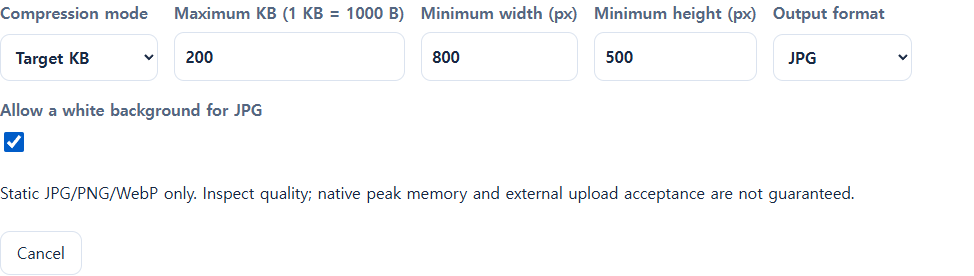
Selecting a file is not the same as processing it, and a preview is not a saved download. Format, minimum dimensions and permission to flatten the background are separate decisions.

Check the downloaded file, not just its preview
- Return to Image Dimensions and process the downloaded JPG. Confirm JPG and 1280 × 800 px. Do not accidentally select the original PNG again.
- Compare the exact byte count and both pixel minimums separately. This file is 197,239 bytes, below the example’s 200,000-byte limit. Reopening it in the information tool displayed 192.6 KB for the same file. Different unit calculations explain the different displayed numbers; do not compare 197.2 and 192.6 without checking the byte basis.
- Open the saved file in an image viewer. Enlarge small text, edges and the background. This is a visual judgment you must make. If important content is unreadable, use a better original or an alternative accepted by the receiving site.
- Only then try the copy in the form. The receiving website makes the final decision. If it rejects the file, read its specific message before repeatedly reducing quality.
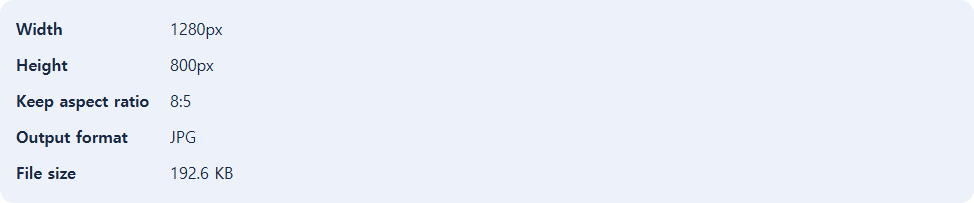
Choose the next step from the actual error
| Symptom | Check and next action |
|---|---|
| Wrong file format | Check whether you supplied PNG or PDF to a JPG-only form. For an image original, use the verified JPG-output procedure above and download a real converted copy. Do not merely rename the extension. |
| JPG transparency warning; no download | Decide whether a white background is acceptable. A transparent PNG test produced no download without permission, then a JPEG copy after permission. If transparency is essential, ask whether PNG is accepted instead. |
| Too large or target cannot be met | Recheck maximum KB and minimum dimensions. The target is not guaranteed. Do not silently lower a required pixel minimum or keep discarding quality; look for a more suitable original or an alternative permitted by the receiving site. |
| Resolution too low | A 320 × 200 px file fails an 800 × 500 px minimum. Resizing it did produce an 800 × 500 px file in our test, but that does not recover lost detail. Obtain an adequately sized original where possible. |
| PDF page range error | A three-page document cannot supply page 9. The tool reports “Enter a valid page range within this document.” Check the actual page count and enter existing page numbers. |
| PDF cannot be processed | No result download means no completed output. Try opening the original in a PDF viewer. Ask its provider for a valid supported copy if the file is damaged or unsupported. Renaming the file or repeating the same failure does not repair it. |
PDF example: keep page 3, then page 1
Use this only when the receiving site accepts PDF and you are allowed to submit selected pages. Creating a PDF does not solve a JPG-only requirement.
- Open Extract PDF Pages and choose the three-page original with Choose files.
- Enter 3,1 in Page range and select Create result. Check that this comma-separated order is the order you need.
- Download extracted-pages.pdf and reopen it in a PDF viewer. Our result has two pages: PAGE 3 first, PAGE 1 second. The synthetic original was 2,445 bytes and the result was 1,262 bytes. Page extraction does not always meet a file-size limit.
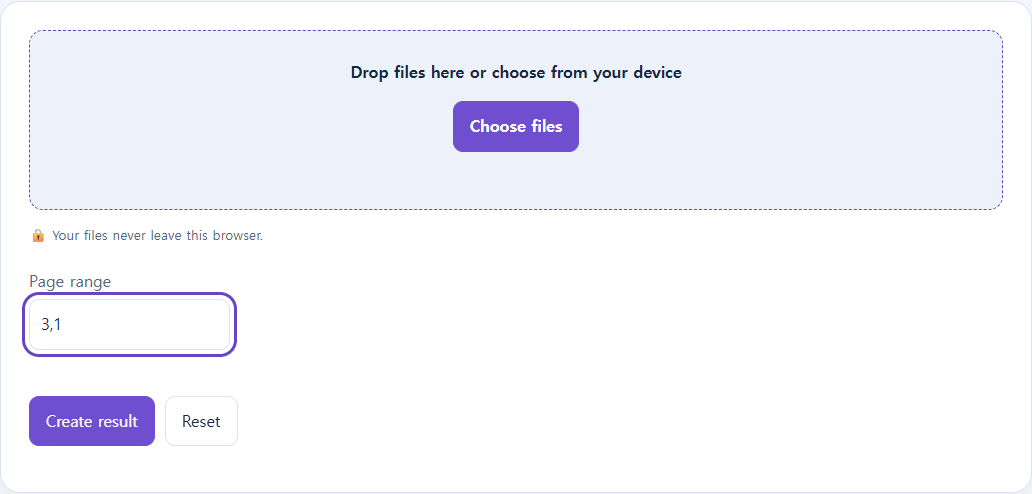
If you only have a PDF but the form requires images, do not force this page-extraction procedure into that situation. Check for an image original or ask whether PDF submission is allowed. If a usable original or compliant output is unavailable, contacting the receiving site is the stop condition.
Questions about this workflow
Can I rename .png to .jpg?
No. The stored format may remain PNG. This workflow selects JPG output, processes the file and uses the downloaded converted copy.
Why did a 200 KB target produce 197.2 KB?
The target is an upper limit, not a size to fill exactly. This result was 197,239 bytes, below 200,000 bytes.
Why does another information panel say 192.6 KB?
Dividing by 1000 or 1024 gives different displayed values for the same file. Use the actual bytes and the receiving site’s definition. The tested Target KB interface explicitly says 1 KB = 1000 B.
Does enlarging dimensions sharpen a blurry image?
More pixels and recovered detail are different things. Obtain a better original if important text or faces are unclear.
Is it finished if there is no download link?
No. Read warnings and errors. Verify an actual saved, reopenable result. The synthetic damaged PDF displayed a processing error and produced no download.
Do correct numbers guarantee acceptance?
No. A receiving site may inspect content or apply additional rules. The example demonstrates tool behavior, not approval by another website.