

Recognize the difference between transparency and white
A transparent PNG lets the page or application behind it show through. A white pixel belongs to the image itself. Some viewers show transparent areas on a white canvas, so both can look identical until you place the image on a dark background. Changing .png to .jpg in a filename does not convert the pixel data and cannot preserve transparency in JPEG.
Use the actual conversion controls
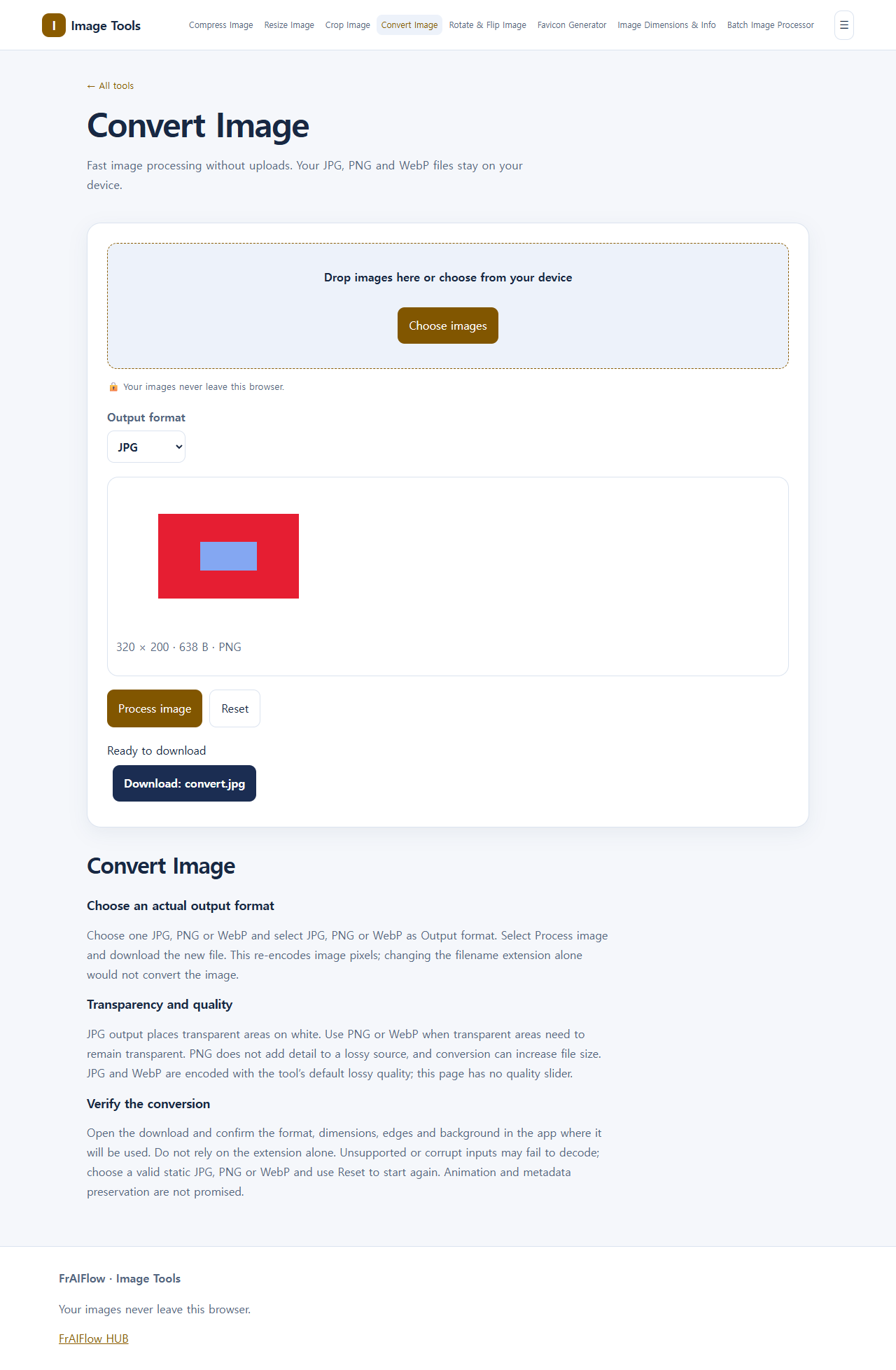
Keep your original PNG. Open Convert Image and select Choose images. Select one valid static PNG. In Output format select JPG; the initial selection may be WebP, so check it explicitly. Select Process image and wait for Download: convert.jpg. Save that file separately. There is no background-color chooser or quality slider on this page. Do not follow instructions that tell you to adjust nonexistent controls.
A small example you can verify
Our synthetic PNG was 320 × 200 pixels, with a fully transparent corner, an opaque red rectangle and a partly transparent blue rectangle. The saved JPEG was 2,511 bytes and still 320 × 200 pixels. An independent image decoder identified JPEG in RGB mode. The formerly transparent corner was (255, 255, 255), meaning solid white, not transparent. The partly transparent blue area was blended with white; it was not a second transparent layer. These numbers describe this fixture only. Your file can be larger or smaller.
| Input | Output |
|---|---|
PNG · RGBA · 320 × 200px | JPEG · RGB · 320 × 200px · 2511 B |
(0, 0): RGBA (0, 0, 0, 0) | (0, 0): RGB (255, 255, 255) |


Check the saved file, not just the preview
Open the downloaded file in the application where you intend to use it. Look at the corner and fine edges against a dark page, and check image properties for format and dimensions. A different extension alone is insufficient evidence of conversion. If a logo needs to float over a colored design, return to the original PNG and export PNG or WebP instead. Saving the white-background JPEG back to PNG will not recreate the original transparent pixels.
If the conversion does not solve the problem
A white rectangle after JPG conversion is expected, not evidence that the original was corrupt. Wrong dimensions are a separate problem; use Resize Image only if the receiving system actually requires different pixels. A file-size limit is also separate: conversion may increase bytes. If the source cannot decode, confirm that it is a supported static JPG, PNG or WebP, then use Reset and choose a valid file. Do not assume that animation or metadata will survive re-encoding.
Frequently asked questions
Can I choose a different JPG background here?
No. This tool currently uses white and has no background-color control.
Can converting the JPG to PNG restore transparency?
No. Use the original transparent source.
Will JPG always be smaller?
No. Inspect the saved file’s actual size and visible quality.
Limits
This is a static-image conversion workflow. It does not promise lossless JPG encoding, animation retention, metadata preservation or a target byte count.