

Decide what should count as the same item
A line is the text between line breaks. Apple and apple are different strings, as are Apple, Apple followed by a space, and Apple preceded by a space. This screen has no case-insensitive or trim-spaces switch. If those distinctions matter in your list, retain them; if you want to change them, make that a deliberate separate step on a copy. Do not silently normalize account identifiers or reference codes merely to remove more rows.
Run a small, visible test first
Open Remove duplicate lines. Paste the test into Input, keeping each item on its own line. Select Run. Read Output before selecting Copy result. The input stays available for comparison. There is no file-download button in this workflow; Copy result copies the text result for pasting into your destination editor. Keep a separate original if you will replace a longer list.
Example: seven input lines become five
Our actual input was Apple, Apple, apple, Apple with one trailing space, Apple with one leading space, Banana, Banana, each on its own line. The actual output was Apple, apple, Apple with its trailing space, Apple with its leading space, Banana, in that order. Only the second exact Apple and the second exact Banana were removed. No alphabetical sort was applied. Use the displayed code blocks in this guide to preserve the spaces when trying the example; a paragraph description alone can hide them.
Input
Apple
Apple
apple
Apple
 Apple
Banana
Banana
Output
Apple
apple
Apple
 Apple
Banana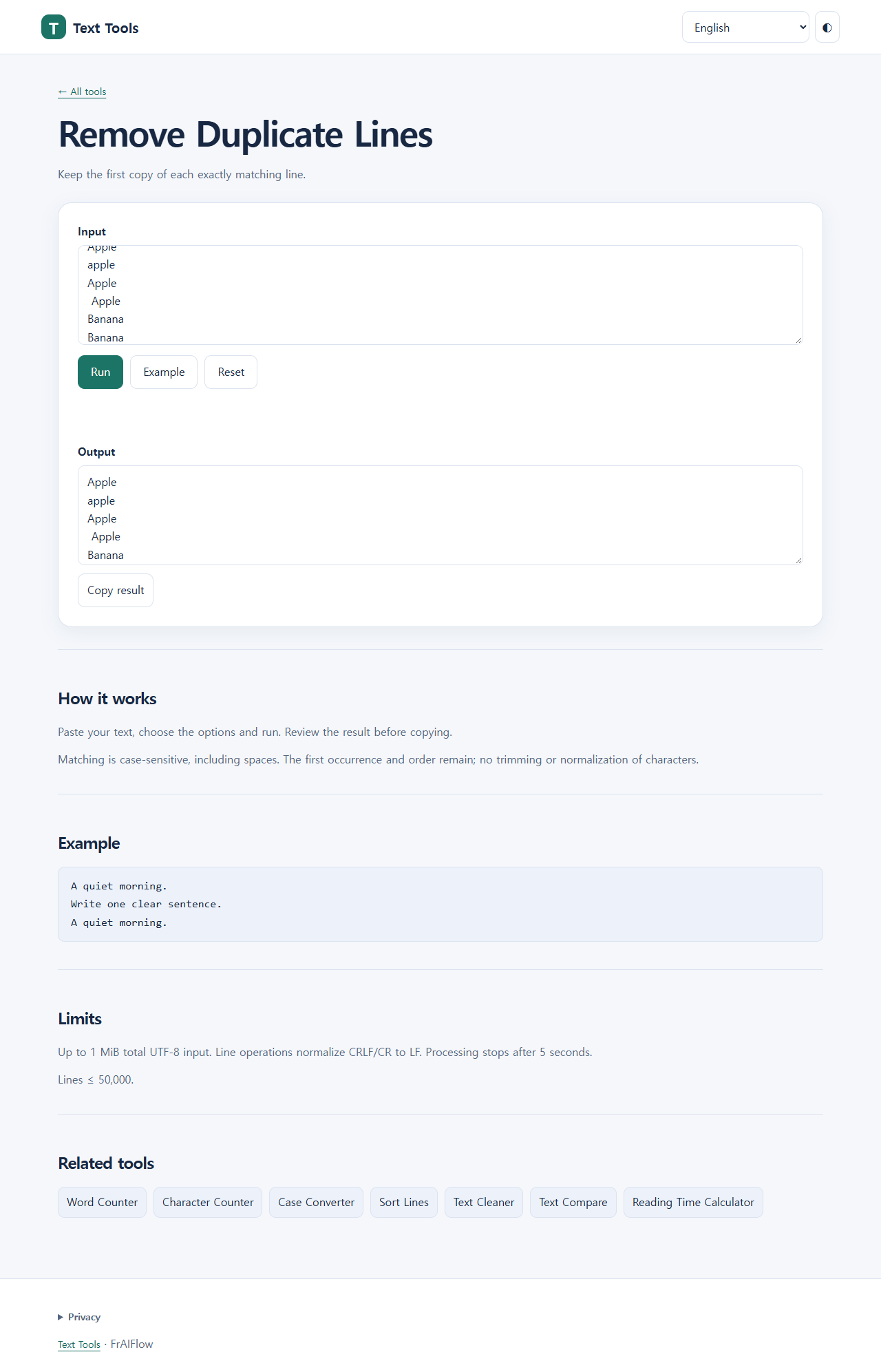
Check the result in its destination
Compare the first occurrence of each expected item with Output and verify that the remaining item sequence is unchanged. Select Copy result and paste into a plain-text editor. A destination spreadsheet or editor may trim spaces, change line endings or interpret values; that is a separate transformation. Check again after pasting. Do not interpret the same word repeated inside one line as duplicate-line removal: Apple Apple is one line and does not become Apple by this operation. If Copy result is blocked by the browser, select the text in Output and copy it manually, then verify the pasted result.
Understand blank lines and errors
Repeated empty lines are also duplicates, so they can reduce to a single empty line. The implementation normalizes CRLF or CR line endings to LF; it is not a byte-for-byte archival tool. If the result seems to keep a duplicate, inspect case and leading or trailing spaces before reporting a failure. If the text is too large, keep the original and process a smaller copy within the displayed limits; do not keep re-pasting a sensitive list into unrelated services. Reset clears the working input and output, so save what you need first.
Frequently asked questions
Why did Apple and apple both remain?
Matching is case-sensitive. They are different complete lines.
Does it keep the first copy or the last?
The first occurrence remains in the original sequence.
Can the output have different line-ending bytes?
Yes. Line endings are normalized to LF, even when visible lines look the same.
Limits
No sorting, whitespace trimming, case folding, duplicate-word removal or file-byte preservation is promised. Input-size and line-count limits still apply.