Why a PDF opens with your password but still will not edit
The sender gives you a password. You enter it, the PDF opens, and you can read every page, but Edit remains unavailable. Buying another PDF editor or uploading the document to an unlocking website is not the right first move.
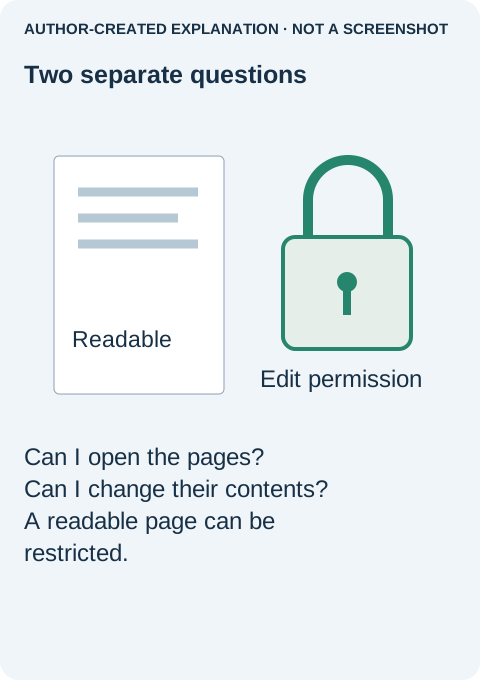
Being able to open a PDF and being permitted to change it are separate things. The file may restrict editing, your application may not include the feature you need, or the page may simply be an image rather than editable text. Check those possibilities in that order.
Find the restriction attached to the file
In desktop Acrobat, open Menu → Document Properties on Windows, or File → Document properties on macOS. Select Security and read the Document Restrictions Summary. Adobe's security-check instructions show this panel.
Look for the exact action you need. Changing page text, filling a form, printing and copying content can have different permissions. A document that allows you to complete designated fields does not necessarily allow you to rewrite the wording around them.
- Write down the requested action and whether it is allowed.
- If it is restricted, ask the owner for the appropriate permission or a replacement file intended for that task.
- If it is allowed, continue with the application and content checks below instead of assuming the password is wrong.
Opening password or permissions password?
A document-open password is requested before you can read the pages. A permissions password controls changes to a restricted file. One document can involve both, and a permissions-only document can open without asking for a password at all.
A password that lets you read the document is therefore not evidence that you have authority to remove its restrictions. If you created the document and retained the appropriate credentials, follow your editor's authorized security workflow on a copy. If someone else issued it, explain the precise change you need rather than asking vaguely for it to be “unlocked.”
For example: “I can read the application, but I need to complete the address fields” is different from “I need to change a clause in the agreement.” The owner may be able to send the correct fillable form or original source without removing protections from the current PDF.
When the file allows editing but your app does not
Check whether you are in a browser preview, free Acrobat Reader or an edition that includes page-content editing. Reading, commenting and filling supported fields are not the same feature as changing existing text. A disabled editing command or subscription prompt may be an application limitation rather than a document password problem.
Do not purchase software until you know what kind of edit is required. If you only need to fill an existing form, try the field itself in the intended reader. If you need to revise a document you own, editing the original Word or design file and exporting a new PDF is often cleaner than manipulating the finished PDF.
When the page is a scan or a signed document
Try selecting a short phrase. If the whole page behaves like one picture, there may be no text objects to edit. A searchable or editable copy may require recognition or a new source export; see why scanned PDF text cannot be searched. OCR is not a way to bypass permissions and should not be applied to a protected original without authorization.
A certificate-based signature introduces another constraint. Do not print or flatten the file merely to obtain something editable: that can discard signature evidence. Ask the issuer for the correct amendment or re-signing process. Similarly, if your organization enforces a protected workflow, request an approved editable copy rather than disabling its security controls.
Why this distinction matters in practice
The retained September 2021 Adobe community question linked below came from a person who could open a protected file but wanted to save it unprotected. The reply distinguished opening and permissions passwords and the limitations of Reader. The reporter did not confirm that removal succeeded.
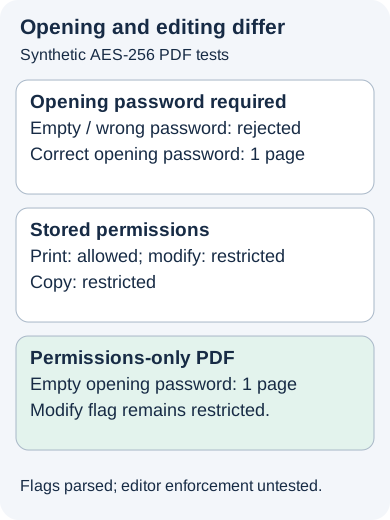
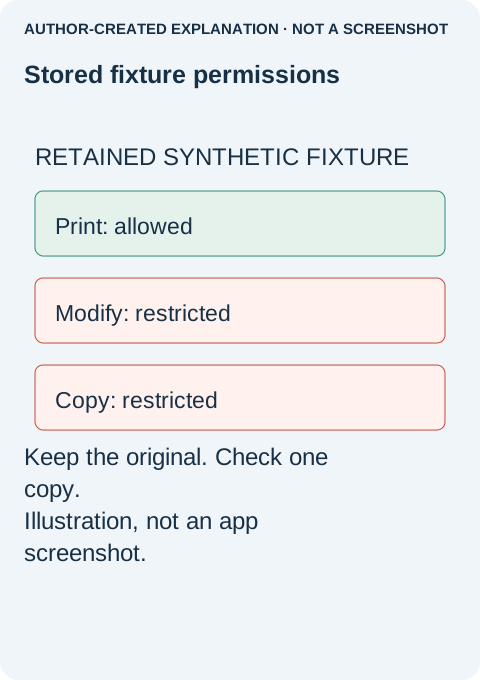
Our earlier controlled pypdf test used two harmless encrypted fixtures with printing allowed and modification/copying restricted. One required an opening password; the other did not. Authentication and reading the first page did not rewrite their stored permission flags. That experiment illustrates the distinction; it does not establish how every application enforces restrictions or authorize changing a real document.
Once the owner supplies an appropriate replacement, save it separately. Check that the required action works, save a small authorized change and reopen it to confirm the result. Keep passwords and confidential files out of unfamiliar converters. The right outcome is an authorized document you can use, not simply a file that another utility can parse.
Sources and related reading
password overview · security-check instructions · editing guidance · September 2021 Adobe community question · Retained test evidence · the separate PDF Portfolio preview issue · Why your PDF printout is cut off at the edges · Why Find cannot see words in a scanned PDF