Why a PDF Portfolio opens to a warning page in your browser
You open an attachment expecting several documents, but the browser shows only a page telling you to use Acrobat or Reader. Downloading it again produces the same apparent result. Before assuming the sender attached the wrong PDF, check whether the file is a PDF Portfolio.
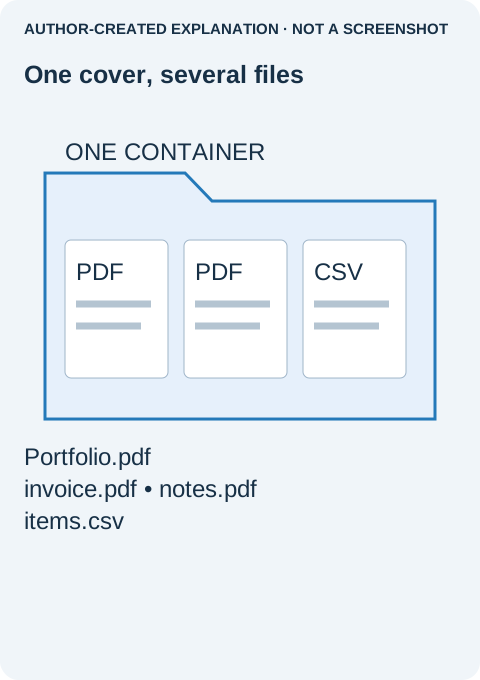
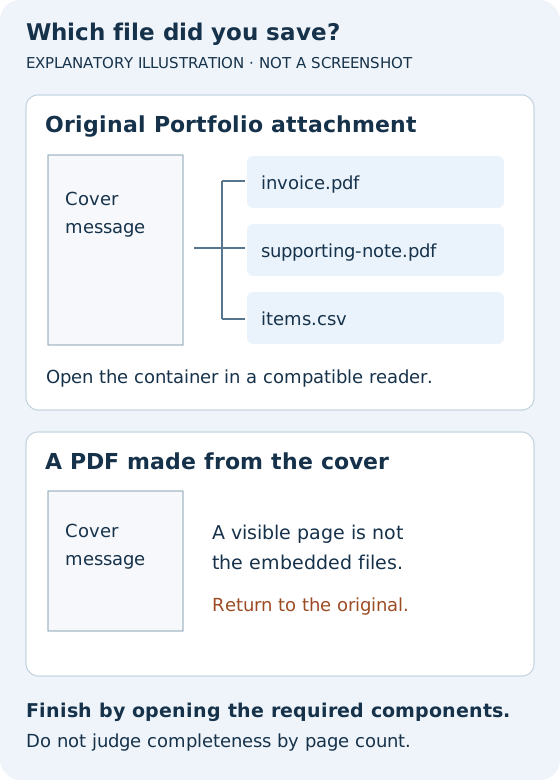
A Portfolio is a container for separate files. Its cover can be the only page a browser preview displays even though the documents are still inside. The useful next step is to open the original container in a compatible desktop reader, not to print or save another copy of the warning page.
Download the attachment, then choose the app to open it
- Return to the trusted email or sharing page and use its attachment download control. Do not use the browser's Save page command.
- Find the completed download. Keep the original filename so you can distinguish it from a PDF made from the warning screen.
- Start a current desktop Adobe Acrobat or Acrobat Reader and use its Open command to select that downloaded file. Double-clicking the file may simply send it back to the browser.
- Look for the component-file list. Open the expected component and check its filename and contents.
Adobe's Portfolio overview recommends downloading and opening in Acrobat or Reader when a browser or email app shows the Reader message. A cover mentioning an old Acrobat version does not mean you should install that obsolete version.
Make sure you have the documents, not another cover
If the saved file still shows only the warning, first check which application actually opened it. A familiar Acrobat-style toolbar inside a browser is not necessarily the desktop application. Use the app's own Open command again only if you discover that the file was never opened there.
Next, compare the file you downloaded with the sender's intended attachment. A PDF created by printing the warning page is just a PDF of that warning; it cannot recover the Portfolio's components. Ask the sender for the original attachment if you are uncertain which copy you have.
If the compatible reader opens the container but a component is missing or blocked, tell the sender the specific filename you expected. A spreadsheet or other non-PDF component may need its own application. Do not disable organizational security controls to make an unexpected attachment open.
Extract only the component you need
In Acrobat's Portfolio view, select the required file or files and use Extract From Portfolio to save a separate copy. Adobe's component-file guide explains opening and extraction. Extraction is different from deleting a component from the container.
Give extracted files a dedicated folder so similarly named documents do not overwrite earlier versions. Open each required item and compare its title, date and expected contents with the sender's description. Keep a signed component in its original form rather than printing it into a replacement PDF.
If the recipient cannot use a compatible reader
Ask for individual files or a conventional combined PDF, depending on what you need. A set of signed PDFs and a spreadsheet is not interchangeable with a single flattened document. Agree on the required contents and order before the sender converts anything.
For ordinary reading pages, a conventional combined PDF may be easier to view on a phone. For editable worksheets, attachments or signed originals, separate files may preserve more of the intended functionality. Check the replacement before discarding the Portfolio: convenience is not worth silently losing a required component.
A reported browser failure, with a practical resolution
In a September 2024 Adobe community discussion, emailed Portfolios displayed an unexpected page despite updated Acrobat and a Chrome extension. The reporter said downloading and opening worked; the accepted reply identified Chrome's embedded viewer. This is a reported outcome for that case, not a guarantee for every email preview.
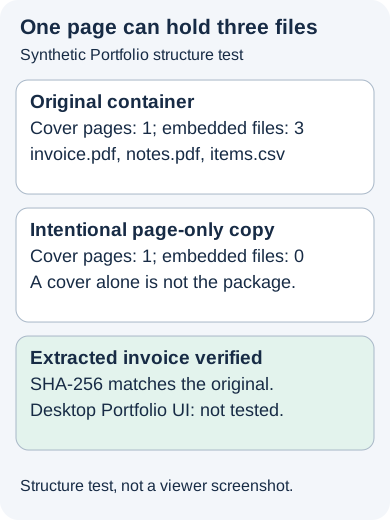
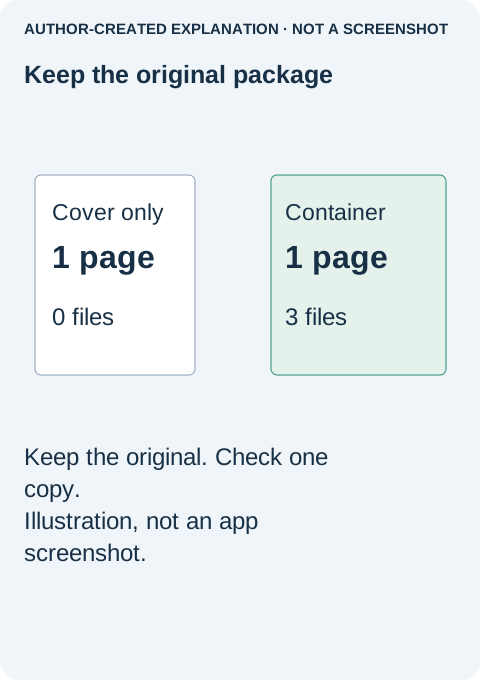
Our retained synthetic example contained one cover page and three embedded files: two PDFs and a CSV. A library inspection found all three, and an extracted invoice matched its original hash. A separate page-only copy kept the cover but none of the attachments. That was a controlled library test, not an Acrobat or physical printing test. It illustrates why counting visible pages alone can mislead you.
The job is finished when you can open the actual required components, not when the cover message disappears. Open only expected files from a trusted sender, and keep the original container until you have confirmed that nothing important was left behind.
Sources and related reading
Adobe's Portfolio overview · September 2024 Adobe community report · opening and extracting component files · Retained test evidence · Why your PDF printout is cut off at the edges · Why Find cannot see words in a scanned PDF · Why a PDF opens with your password but still will not edit