Why Find cannot see words in a scanned PDF
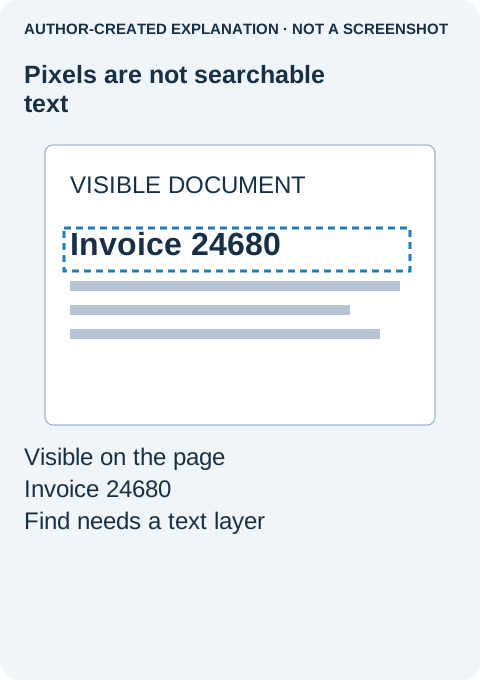
You can see an invoice number on the page, yet Find returns no result. Typing the number again changes nothing. This often happens because the PDF contains a photograph of the page rather than text the search tool can read.
Before running recognition across a long document, check one page. A PDF can contain both normal text pages and scanned pages, so a successful search near the beginning does not prove the rest is searchable.
Use a short copy-and-paste test
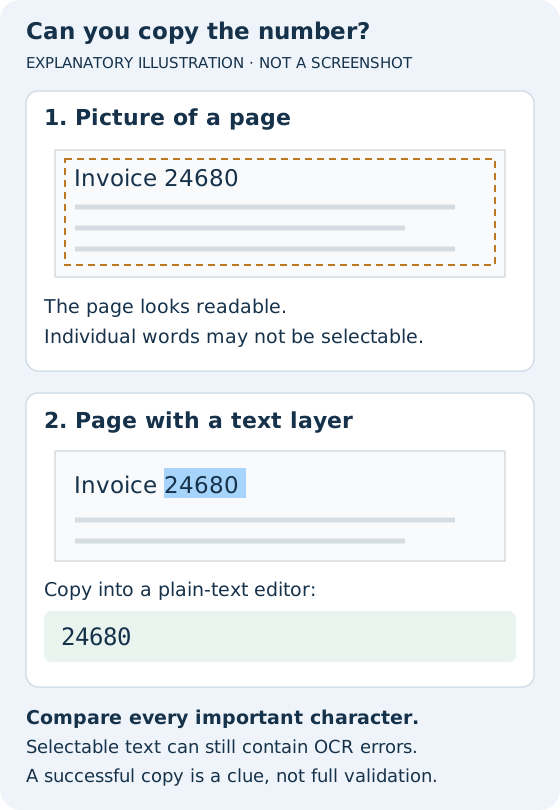
- Open the saved PDF and choose the text-selection tool, not the hand tool used to move the page.
- Try selecting a short, distinctive word or invoice number on the problem page.
- Copy it into a plain-text editor and compare the pasted characters with what you can see.
If you get readable text, a text layer exists at that location. Try searching a shorter part of the word, turn off unnecessary case or whole-word restrictions, and check whether the PDF uses a different character or a line break. If you get nonsense characters, the layer may have a broken mapping or poor recognition. If you cannot select individual words, the page may be image-only; check copying restrictions before concluding that it needs OCR.
Make a searchable copy in Acrobat
OCR means optical character recognition: software estimates the letters in a page image and adds searchable text. It can help Find, but it does not guarantee correct spelling, reading order or accessibility.
On a copy you are authorized to process, open All tools → Scan & OCR → In this file. Choose the affected page range and the document's language, then select Recognize Text. Start with a small range so you can judge the result before processing the rest. These are the steps in Adobe's text-recognition guide; the feature must be included in your Acrobat edition.
If you only have free Reader, do not assume that seeing a Scan & OCR promotion means OCR authoring is available. For one document, asking the sender for a searchable PDF exported from its original source may be the simpler route. Keep confidential scans out of unfamiliar online converters.
Check the words, not just the success message
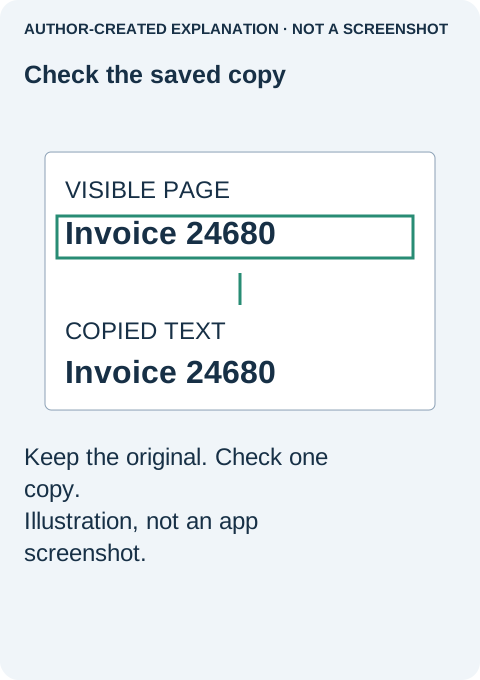
Save the processed file with a distinct name, close it and reopen it. Search for the same number that originally failed. Then copy a full sentence and compare it with the page image. Inspect another page with smaller type or a different layout.
- Names and references: look for missing punctuation and confused letters.
- Amounts and dates: check decimal points and characters such as 0/O and 1/I.
- Tables: verify that copied values have not been rearranged into the wrong order.
A search hit for one invoice number is a useful check, not certification of the whole file. For a record you will quote or calculate from, verify the actual characters against the source image.
If recognition is poor or the file already has text
A sideways, blurred or low-contrast scan gives OCR less to work with. If the paper is available, a clearer, straight scan is often better than repeated processing of the same weak image. Check the language selection before retrying. Keep a clean original so one unsuccessful pass does not become the input to every later attempt.
Acrobat offers a Review recognized text tool for inspecting suspect words; Adobe explains it in Fix text recognition errors. A character may be recognised incorrectly without being flagged, so still check the details important to your task.
If ordinary text is already selectable but copying produces nonsense, request a fresh PDF export with working text information. OCR is not automatically the best fix for a badly exported digital document. Preserve digitally signed originals rather than modifying them as a troubleshooting experiment.
The case behind the advice
A June 2020 Adobe community question describes visible words that search could not find. An employee suggested checking for an image-only scan using a copy test. The thread supports that diagnostic approach, not a claim that this particular file was successfully repaired.
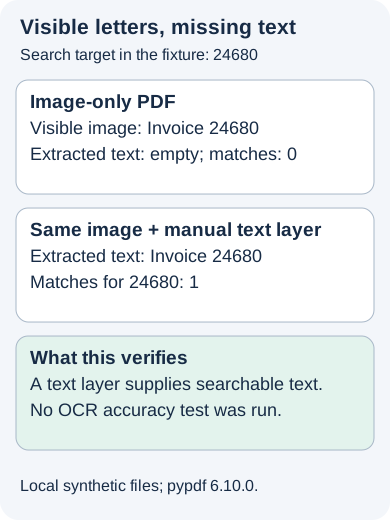
Our earlier controlled example used “Invoice 24680” and “Total 123.45.” The image-only PDF yielded no extracted text; the same image with manually supplied invisible text yielded both lines and a match for 24680. No OCR engine was used. The example isolates why a text layer matters without claiming an OCR accuracy result.
Once the saved copy reliably finds the terms you need, keep it alongside the original scan. When sharing it, describe it as a searchable copy, not as a perfectly transcribed or fully accessible document unless those properties have actually been checked.
Sources and related reading
how to check PDF restrictions · a June 2020 Adobe community report · Adobe documents the procedure here · Retained test evidence · recognition-error guidance · Why your PDF printout is cut off at the edges · Why a PDF Portfolio opens to a warning page in your browser