Parse CSV commas, quotes and line breaks safely
A customer message contains a comma and a line break. Your export looks readable, yet the next tool adds a row or shifts a column. The file may be valid CSV: a quoted field can contain both characters. Splitting at every comma or newline discards that structure.
Start with a small copy of the troublesome export
If a message has slipped into the next row, do not begin by deleting its line break. That may remove part of a customer's address or support request. Keep the original export, then copy its header and two or three complete records into a separate test file. Include a record containing a comma, one containing quotation marks, and one containing a line break. Use made-up values if you need to share it.
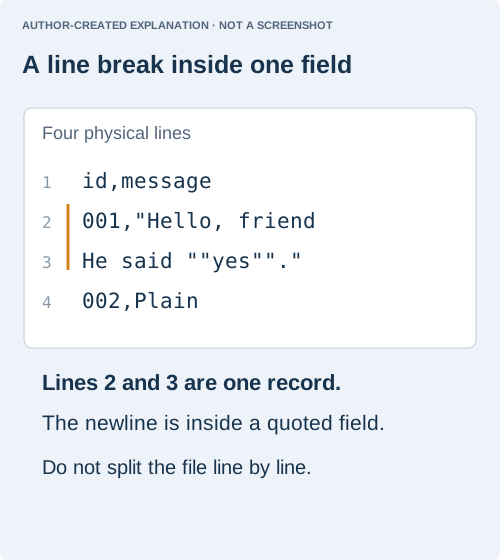
Open that copy in a plain-text editor, not only a spreadsheet. Find the opening quote before the troublesome field and follow it to the closing quote. A newline inside that pair belongs to the field. Two adjacent quotes inside the field represent one literal quote; they do not necessarily finish the field. This is why a file can look like four lines on screen without containing four records.
Why one message becomes several lines
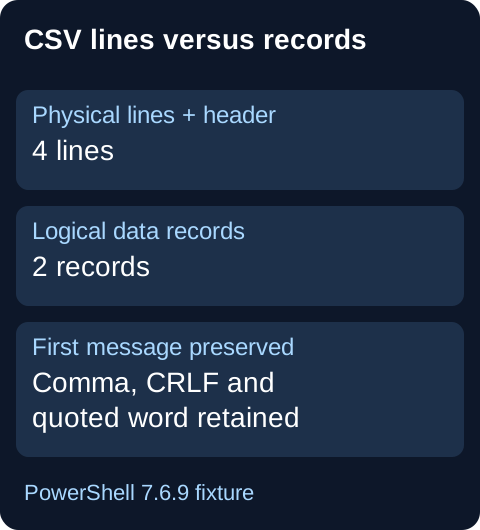
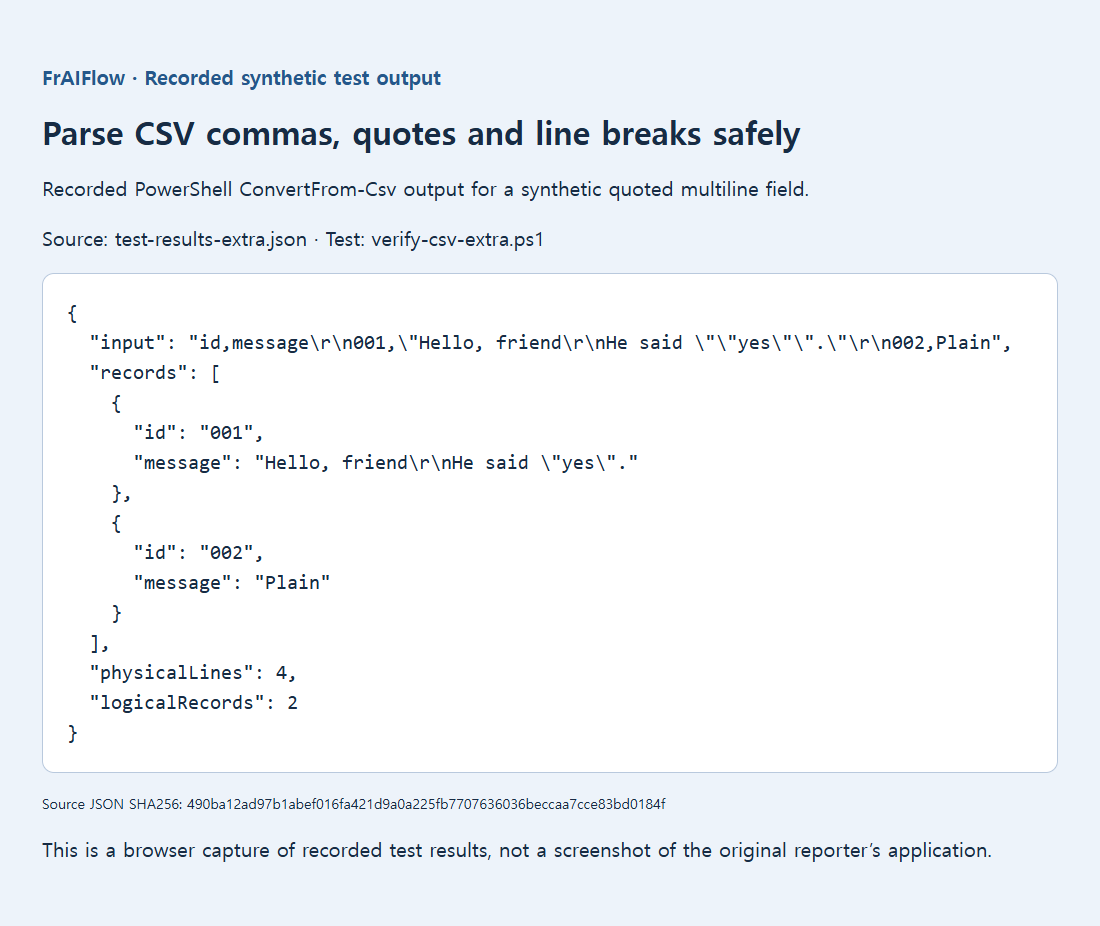
A public shell-command report found that cut could not reliably extract a column from this kind of file. In the retained synthetic fixture, PowerShell 7.6.9 parsed two data records and preserved the first message exactly, including its CRLF and quoted word. That is a parser result, not a test of every spreadsheet importer.
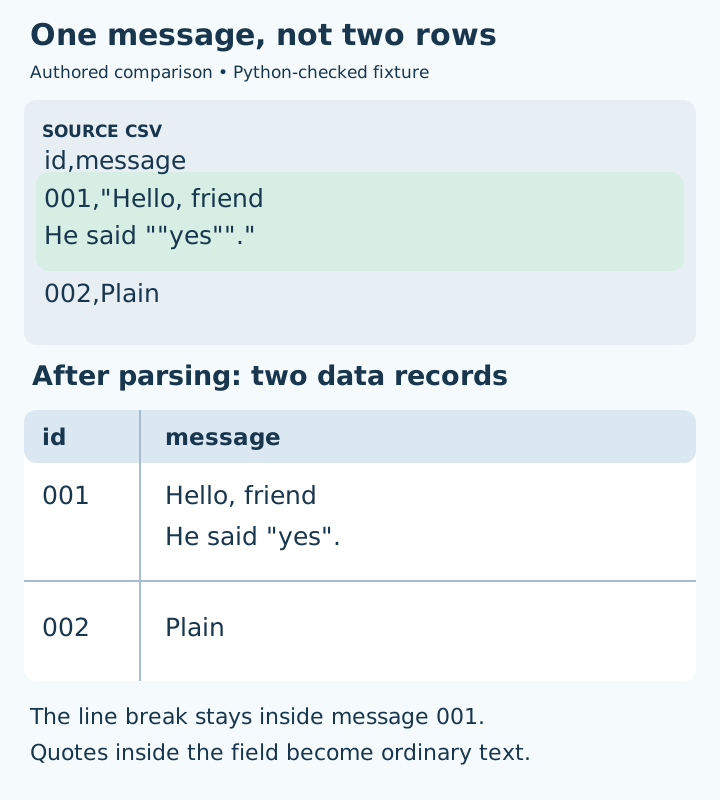
id,message
001,"Hello, friend
He said ""yes""."
002,Plain
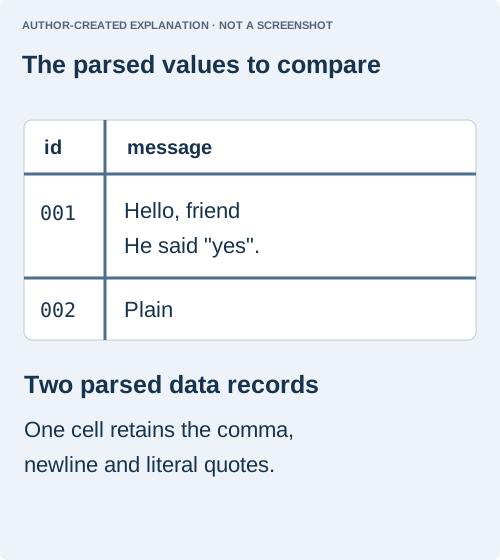
There are four physical lines including the header, but only two data records. The doubled quotes represent literal quote characters inside the quoted message. Do not remove all quotation marks to make the file look simpler.
Run a parser and inspect the actual values
If Python is already installed, save the following as check_csv.py beside input.csv. Run python check_csv.py from that folder. The script only reads the input. It prints the number of fields in each record and makes embedded newline characters visible, so you can see whether the parser kept a message together.
import csv

with open("input.csv", encoding="utf-8", newline="") as source:
    reader = csv.reader(source, delimiter=",", strict=True)
    for record_number, fields in enumerate(reader, start=1):
        print("Record", record_number, "fields:", len(fields))
        for column, value in enumerate(fields, start=1):
            print("  Column", column, repr(value))
The first record is the header, so the example above should produce three records in total, each with two fields. Its first data message should contain both Hello, friend and He said "yes". in a single field. This script is an inspection recipe, not a claim that it has run against your export. A decoding error means the assumed UTF-8 encoding needs investigation; a CSV parsing error points to the file's quoting or dialect. Neither is a reason to discard unreadable characters automatically.
The script assumes UTF-8; it is not an encoding detector or a new test result. Feed the complete file to the parser rather than calling it separately for each text line. For semicolon-separated data, set the delimiter to match the export.
Check the import before replacing your original
That narrows the problem to the import route rather than proving the export is broken. Use the spreadsheet's text/CSV import facility and examine its preview before loading. Match the separator to the producer's setting, and make sure identifiers stay text if leading zeros matter. The exact controls vary by application and version. Import the same small test file first; do not experiment on the only copy of a production sheet.
A successful import keeps the message in one cell, preserves its quotation marks and line break, and leaves every other column under the correct heading. Save a separate result and reopen it through the intended workflow. A neat-looking grid alone is not enough: compare the tricky cell's complete value. If both tools reject the source, ask the exporter for its delimiter, encoding and quoting rules before attempting a repair.
If quotes are genuinely malformed, keep the source and request a clean export. A stray quote can mean several different things, so a universal repair is unsafe. A historical Excel 2007 report also describes import-route differences; it does not establish how a current Excel installation will behave. Test one representative file through the exact import route you intend to use.
Sources and related reading
- Original explanation diagram
- Quoted commas and newlines defeat cut
- Embedded quote creates an extra field
- Malformed CSV parsing report
- Historical Excel 2007 report
- Python CSV dialect and newline documentation
- Original visual evidence
- Keep leading zeros and long IDs in CSV imports
- Fix a CSV that opens in one column