Keep leading zeros and long IDs in CSV imports
A product code such as 00123 can survive CSV export and still lose its zeros when a spreadsheet opens it. CSV stores text fields, not spreadsheet cell types. The important question is where the first unwanted numeric conversion happens.
R and pandas users have reported leading-zero values that looked correct before export but appeared shortened in Excel. A separate report traced lost long-number digits to saving through Excel. These are useful examples of a type boundary, not proof that every CSV exporter removes zeros.
A careful Excel import, from file to checked cells
Make a backup before trying to repair the workbook. Open the CSV in a plain-text editor first. If it still says 00123, there is something worth protecting. If the raw file already says 123, formatting Excel cells cannot tell you whether the original had one zero, two or none.
- In Excel, start with an empty workbook and choose Data → From Text/CSV. Select the original CSV rather than a copy that Excel has already resaved.
- Check the preview’s delimiter and encoding. The product-code header and sample rows should line up before you load anything.
- Choose Transform Data. In Power Query, inspect Applied Steps. If an automatic Changed Type step has converted the identifier to a number, remove or correct that conversion before continuing.
- Select the identifier column and choose Text as its data type. Repeat for postal codes, account codes and other fields that require exact characters. Keep actual quantities numeric.
- Use Close & Load, then compare complete values with the original file, including at least one leading-zero code and one long identifier.
Menu availability varies by Excel version. The linked Microsoft instructions cover the import approach and supported automatic-conversion settings. This is a documented workflow, not a claim that this article’s author ran your Excel installation.
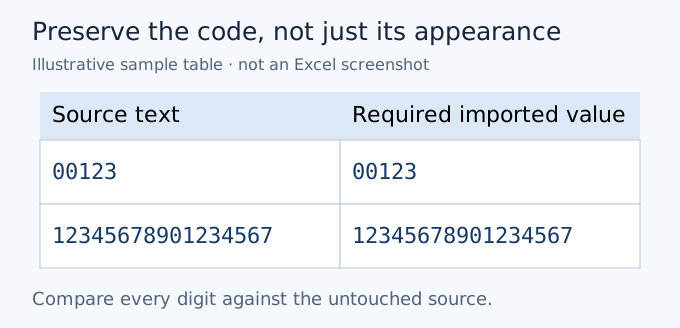
A useful acceptance sample is 00123 alongside 12345678901234567. The first catches zero removal; the second catches precision loss. Looking only at a short ordinary number such as 123 would miss both problems.
If the workbook shows scientific notation, widen the column and inspect the full underlying value before deciding what happened. Scientific display alone is not proof of lost digits. Conversely, switching a rounded number to a non-scientific format does not recover its original digits. Compare against the source, not a more reassuring-looking cell.
Finally, test the handoff. If you export to CSV again, inspect that new file as text, then import it using the recipient’s intended process. The text type belongs to the workbook, not to the CSV format. Include import instructions, or use a workbook with text-typed codes when that better fits the recipient’s workflow.
Why quotes do not protect identifiers
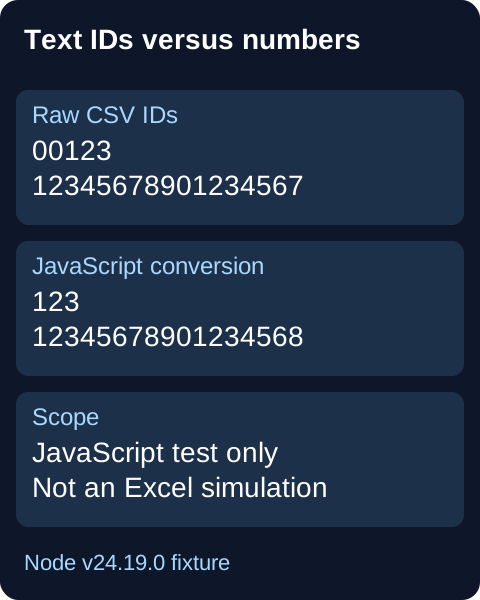
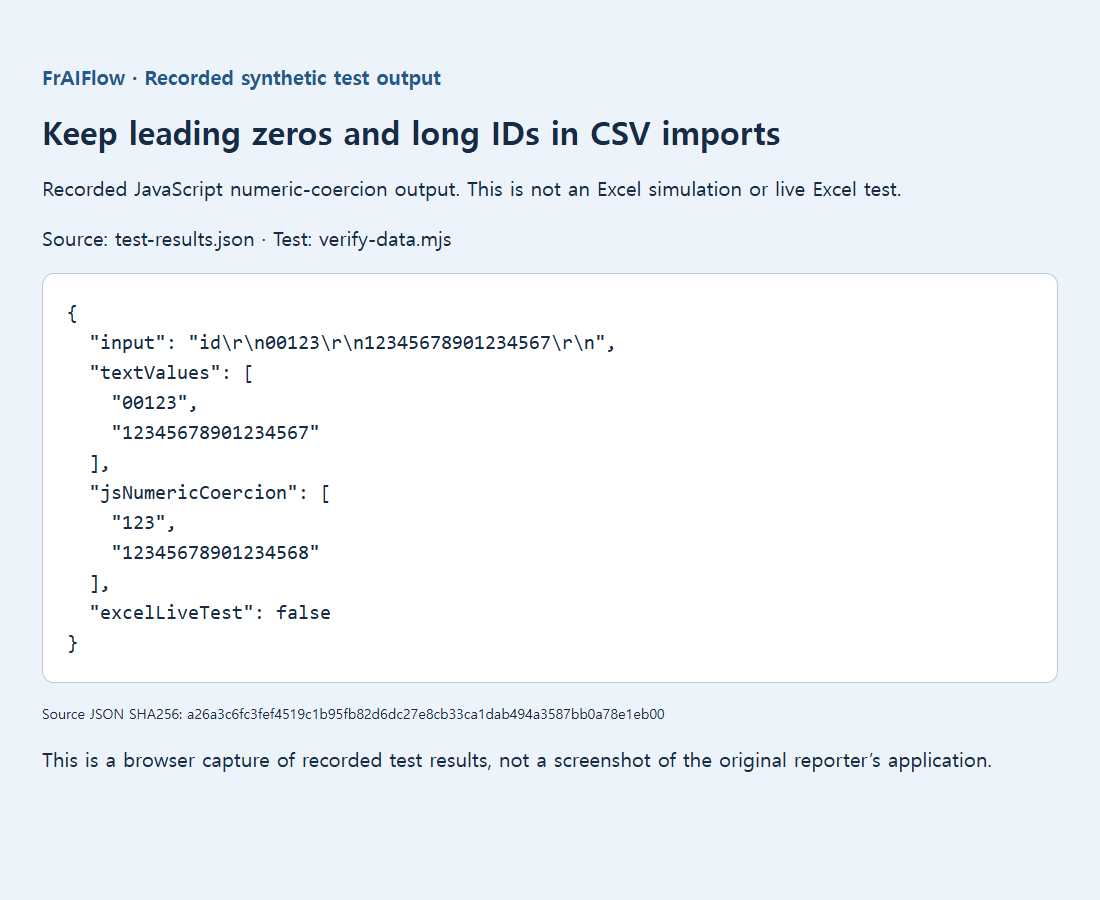
A small synthetic example wrote and read 00123 and 12345678901234567 unchanged as text. Explicit JavaScript Number conversion removed zeros or rounded digits. The saved output is a JavaScript test, not an Excel simulation. Excel’s separately documented numeric precision is 15 significant digits.
Choose a reliable handoff
If recipients must double-click with no import instructions, consider an XLSX workbook with explicitly text-typed identifier cells. Quoting a field with ordinary CSV double quotes protects separators; it does not reliably tell a spreadsheet to store that field as text. Keep quantities that need arithmetic separate from codes that need exact identity.
Never guess lost digits. A padded display may look right without proving the stored code is correct. Padding is justified only by a trusted fixed-width schema and intact remaining digits; rounded long identifiers need recovery from the source. Avoid formula wrappers as a shortcut: they change the data’s meaning and can introduce formula-handling risks. Test the actual recipient’s import path before sending important identifiers.
Sources, examples and further reading
- Original supporting diagram
- Public discussion: export to csv keeping leading zeros when opened in excel
- Public discussion: how can i keep leading zeros in a column when i export to csv
- Public discussion: scientific notation last digits omitted as zeros when write csv
- Microsoft documentation: keeping leading zeros and large numbers
- Saved local test evidence
- Fix a CSV that opens in one column
- Parse CSV commas, quotes and line breaks safely