Fix a CSV that opens in one column
If every CSV row lands in column A, check the separator before rewriting the file. A .csv extension does not guarantee that every application will choose the same delimiter. Exports may use commas, semicolons or tabs, and automatic interpretation can depend on regional settings.
A public report described semicolon files opening correctly on a German Excel setup but staying in one column on a US setup. Another described different behavior between two Excel 2016 machines. These establish the symptom, not a universal diagnosis for every one-column import.
Get the preview right before loading
Leave the source export intact and open a copy in a text editor. Look for the punctuation between the header names, then check several data rows. A semicolon between every field is a clue; a comma inside a quoted address is not. A tab can look like several spaces, so use the editor’s whitespace display if necessary.
- Open a blank Excel workbook and choose Data → From Text/CSV, then select the file.
- In the import preview, change Delimiter to match the source: comma, semicolon or tab. Do not change your whole computer’s regional settings for a single file.
- Check that each heading sits above the right values. Try a row with an empty field and one with punctuation inside quotes, not just the first uncomplicated row.
- If codes must keep leading zeros or long digits, choose Transform Data and set those columns to Text before loading. Review any earlier automatic type-conversion step.
- Load the data, then compare a few full rows with the source copy. Check row count and field placement as well as the appearance of the table.
For the example id;label followed by 001;alpha, selecting a semicolon should produce two columns. The ID belongs under id, not merged into the label. The illustration shows that distinction using sample data; it is not an Excel screenshot.
If you already opened the file into column A, importing the untouched source again is safer than repairing cells in place. Text to Columns may be useful for simple material, but first preserve a copy and consider embedded newlines and quoting. A result with plausible-looking columns is not enough if a comment was split into several fields.
If no delimiter choice produces consistent rows, inspect whether the export uses proper quote escaping. For example, a quoted field may contain the same punctuation used between columns. Use a CSV-aware reader and writer when changing the file format. A global search-and-replace can change the contents of addresses and comments as well as their separators.
If columns are now correct but names look garbled, that is a separate encoding issue. If decimal values are interpreted incorrectly, review locale and numeric conversion separately. Solve one boundary at a time so you can tell which change fixed which symptom.
Why the same file opens differently
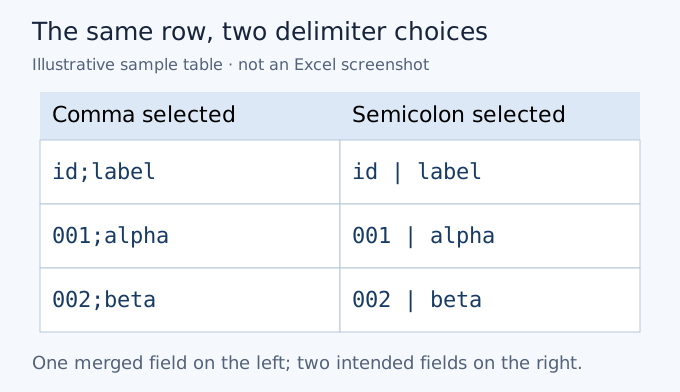
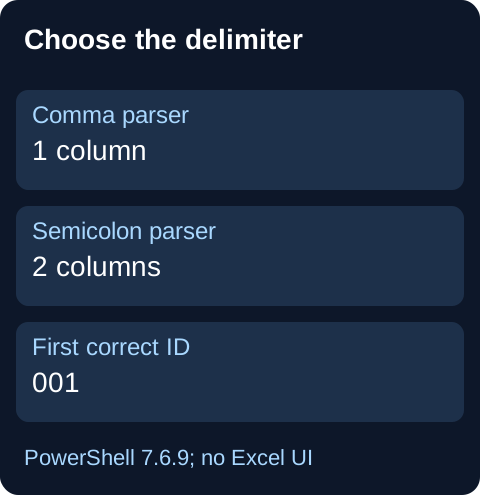
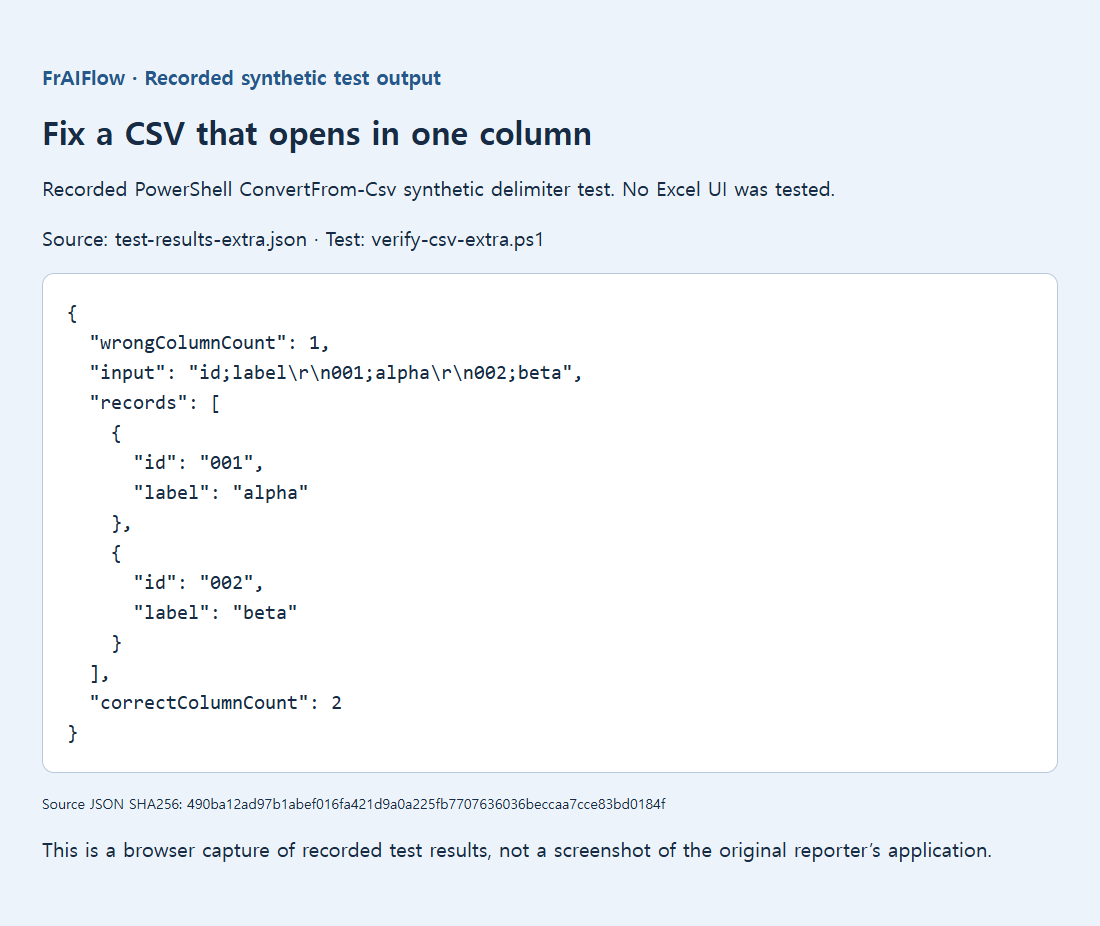
A saved PowerShell ConvertFrom-Csv test used id;label followed by 001;alpha and 002;beta. A comma delimiter produced one column; a semicolon produced two, and the first ID remained the string 001. This was a parser-configuration test, not an Excel UI or regional-settings test.
Avoid global and destructive fixes
An Excel-specific sep=; line is mentioned in the public discussion, but other readers can treat it as a record. It is not a universal CSV repair. If double-click opening is essential, a typed XLSX handoff may be clearer. If explicit delimiter selection still shifts columns, inspect quote escaping and embedded newlines rather than forcing a preview that merely looks plausible.
Sources, examples and further reading
- Original supporting diagram
- Public discussion: how to open semicolon delimited csv files in us version of excel
- Public discussion: opening csv files in excel 2016
- Microsoft documentation: import or export text txt or csv files
- Saved local test evidence
- Keep leading zeros and long IDs in CSV imports
- Parse CSV commas, quotes and line breaks safely