Why JPEG quality changes after repeated saves
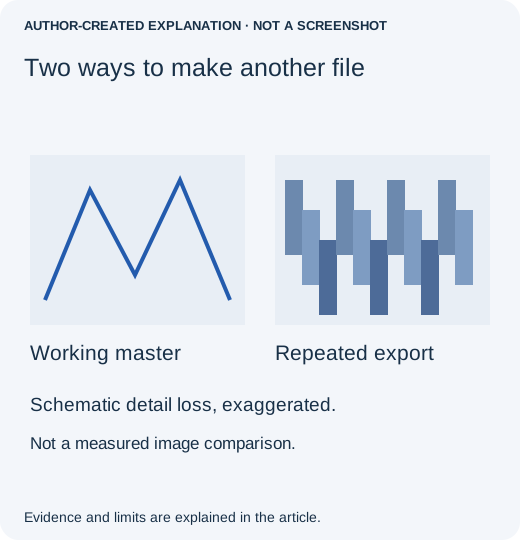
A JPEG does not deteriorate because it sits in a folder. Editing a compressed JPEG, saving it, reopening that output and encoding it again can change detail. Keep a working master so each delivery does not begin with the previous export’s losses.
A practical save routine for a photo you will edit again
Suppose you need a large photo for your website today and a smaller copy for a profile tomorrow. The tempting shortcut is to resize today's JPEG. Instead, keep the editable original as your starting point for both deliveries. You do not need a new tool; you need to keep the working file separate from the files you share.
- Find the best available starting file. Use the camera original or an existing layered project, not a copy downloaded from a chat. Give your working project a recognizable name, such as
portrait-master.psd. Keep the original photograph separately too. - Finish the edits in that master. Crop, retouch and adjust color there. Save the native project before making a delivery copy. JPEG cannot preserve the project's separate layers.
- Make a separately named JPEG. In Photoshop, File → Save a Copy can create a JPEG without replacing the working document. Inspect the JPEG quality preview before saving. Available format choices depend on the document; do not flatten your only master just to make JPEG appear.
- Reopen the saved copy and compare. Look at a detailed edge at 100% zoom, then at the size people will actually see. Check dimensions as well as file size. Large dimensions with aggressive compression and small dimensions with gentle compression can both look bad for different reasons.
- For the next version, return to the master. Export
portrait-profile.jpgfrom that document, not fromportrait-website.jpg. Keep both deliveries if you need to compare them later.
If the earliest file already has halos, blocks or smeared lettering, a maximum-quality export will preserve those defects rather than undo them. Ask for a better original when possible. For screenshots and diagrams with sharp text, consider a lossless format accepted by the destination instead of treating JPEG as the only option.
Adobe explains Save a Copy and native project formats. This is a documented workflow, not a claim that we tested every Photoshop version.
Compare the right files
Look at the earliest original, editable project and final JPEG at the same pixel zoom. Check whether resizing, sharpening or a sharing service also changed the image. A blurry thumbnail is not proof that the original file changed. In an April 2024 Adobe Community report, a photographer saw speckling despite high-quality saves; the advice was to keep a native working file. The thread did not isolate every cause.
What repeated encoding changed in one controlled image
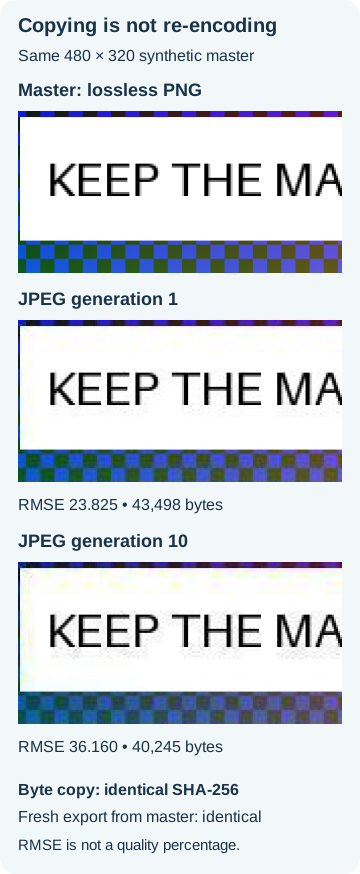
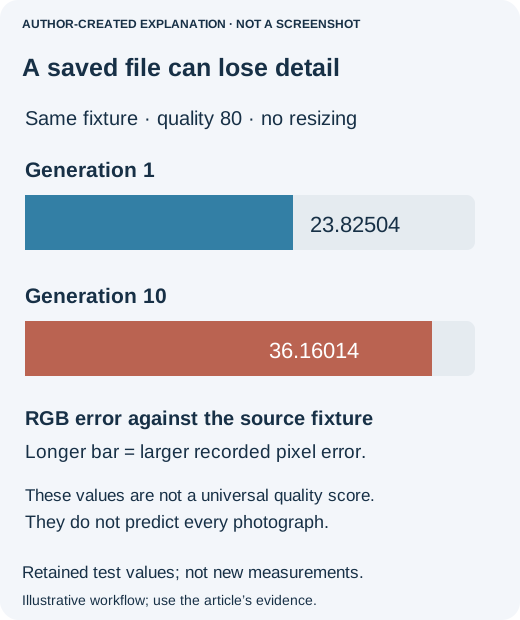
Our synthetic 480 × 320 fixture used Pillow quality 80 and 4:2:0 chroma subsampling. It was decoded and re-encoded ten times without resizing. Generation one was 43,498 bytes; generation ten was 40,245 bytes. RGB root-mean-square error against the lossless master rose from 23.82504 to 36.16014. These are fixture measurements, not a percentage of quality lost from a photograph.
Copying the file does not compress it again
A byte copy of the first JPEG had the same SHA-256. Exporting the unchanged lossless master again with identical settings also reproduced the first export. Opening, moving or copying a file is not the tested decode-and-encode cycle. Different images and encoders can behave differently; not every save causes a visible decline.
A lossless PNG working copy prevents another JPEG generation, but it does not preserve a layered project or restore detail that was already lost.