Keep a profile photo from being cropped in the wrong place
If an uploaded avatar cuts off a face or logo, making the file smaller will not fix its framing. A landscape picture must lose content or gain padding to fit a square. Check the circular mask too: a good square composition can still lose its corners.
Make one upload copy with room around the subject
The important question is not “How many kilobytes should this be?” It is “Which part of the picture will the site keep?” If your face is close to the edge of a wide photo, an automatic center crop has no way to know it should move left.
- Start with a duplicate. Open a copy in your usual editor and select a square, or 1:1, crop ratio. Move the crop box over the subject rather than accepting its initial center position.
- Leave space above and beside the subject. A circular avatar hides the square's corners. Keep essential details away from those corners, and do not frame a face so tightly that the top of the head touches the edge.
- If cropping removes something essential, add canvas instead. Fit the complete picture inside a square background. Do not stretch a wide image into a square: that changes the proportions of faces and logos. Padding makes the subject smaller, so check that it remains recognizable at thumbnail size.
- Save as a new file and reopen it. Confirm the square framing is in the exported file, not just an unsaved editor view. Follow the destination's stated format and dimensions; no single pixel size is correct for every profile service.
- Use the destination's crop preview, then check the saved profile. Reposition or zoom only as needed. After saving, leave the edit screen and reopen the profile. If a different device shows an older crop, that is a separate update or caching issue.
For an Apple Account, use the supported photo controls on iCloud.com rather than repeatedly editing the original image. The public report below is useful because it separates a cropping choice from a crop that later reverts. A square export can improve the starting composition; it cannot guarantee that an account service saves or synchronizes the selection correctly.
When a logo contains small lettering, judge the final thumbnail, not a full-screen preview. If the letters become unreadable, a simpler approved logo variant may work better than further compression. Keep any confidential background content out of the exported file itself; a display mask is not a privacy tool.
Separate framing from account behavior
In a Reddit discussion, Apple profile-photo crops shifted after selection. A square copy helped some suggestions but not every user; later replies reported success through iCloud’s web interface. That does not prove square preparation fixes account syncing. Use Apple’s supported photo controls, save, and revisit the profile. If it reverts across devices, investigate that separately.
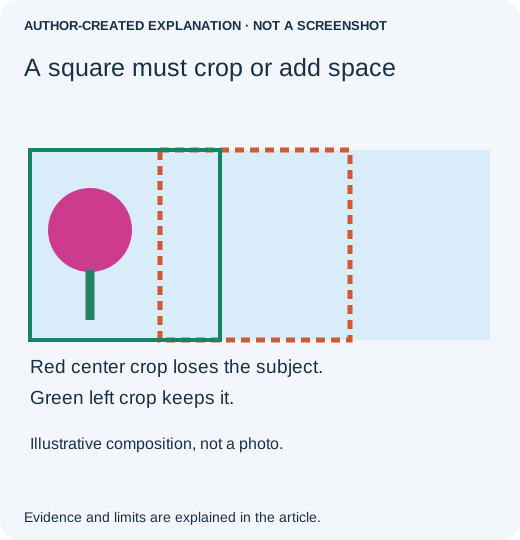
Choose what should survive
Our synthetic 1200 × 800 image placed a magenta subject near the left edge. A centered 800 × 800 crop used x=200–999 and cut most of it off. A left crop used x=0–799 and kept it. Padding fitted the whole image at 400 × 267 inside a 400 × 400 canvas. These are framing choices, not compression settings. The marker counts were 344, 9,832 and 4,412 pixels respectively; the padded subject was smaller, not less “correct.”
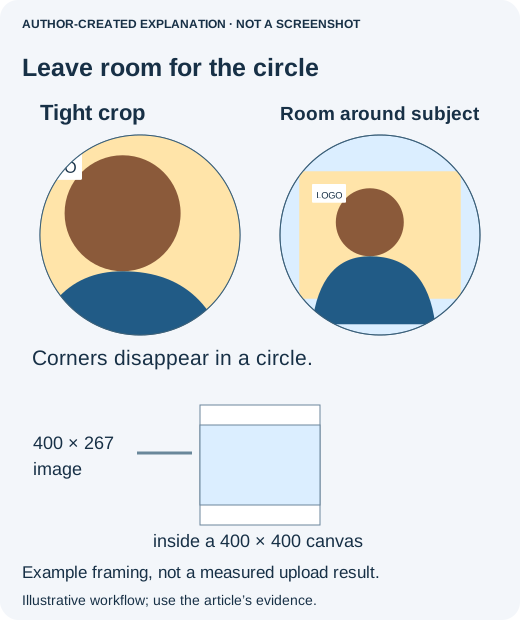
Keep orientation and privacy in mind
Pillow’s ImageOps.fit crops to fill; ImageOps.pad keeps the full image with spare canvas. Apply ImageOps.exif_transpose first so stored orientation does not shift the intended crop. For a normal photograph use a suitable resampling filter such as LANCZOS; the retained fixture used nearest-neighbor for exact pixel checks. A service’s display crop can merely hide parts of the original. Remove unwanted content from your exported copy and review metadata separately. This geometry test did not test Apple syncing or a live upload.
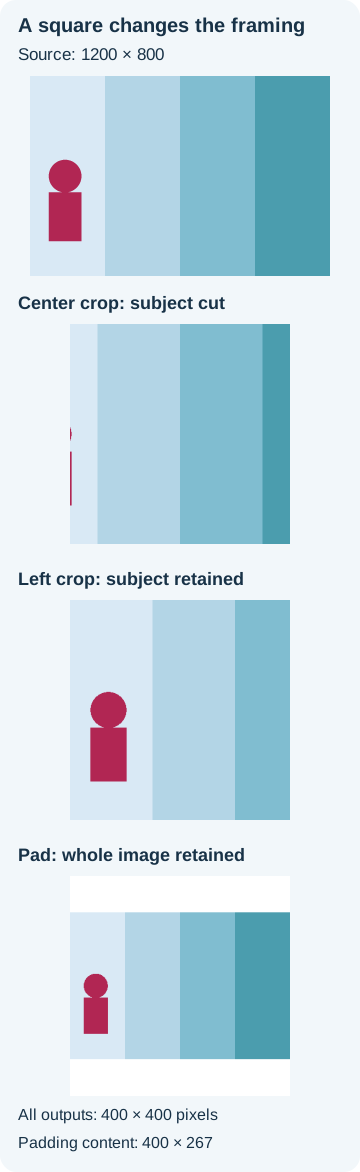
Sources, examples and related reading
- Reddit discussion about Apple profile-photo cropping
- Apple’s iCloud photo instructions
- Original evidence
- Pillow distinguishes fit from pad
- Why a photo turns sideways after upload
- Why JPEG quality changes after repeated saves
- Why an animated GIF stops moving after you save it
- Why CMYK JPEG colors can change when shared online