Why a photo turns sideways after upload
The photo is upright in your photo library. You attach it to a form, a listing, or a profile, and suddenly everyone is looking at it sideways. Rotating it in the uploader may fix that one preview, but the next website can get it wrong again. Before making another edit, find out whether the rotation is in the picture itself or in the instructions stored beside it.
The safest first move is simple: keep the original, make a separate correctly oriented export, close it, and reopen that exact file. Then test the new copy at the destination. The details matter because a preview that looks right is not always a file that has been saved right.
Compare the photograph, not the tiny labels
Two enlarged views from the retained actual browser screenshot. On a phone they stack vertically; the original full screenshot follows unchanged.
1. Stored pixels, tag removed
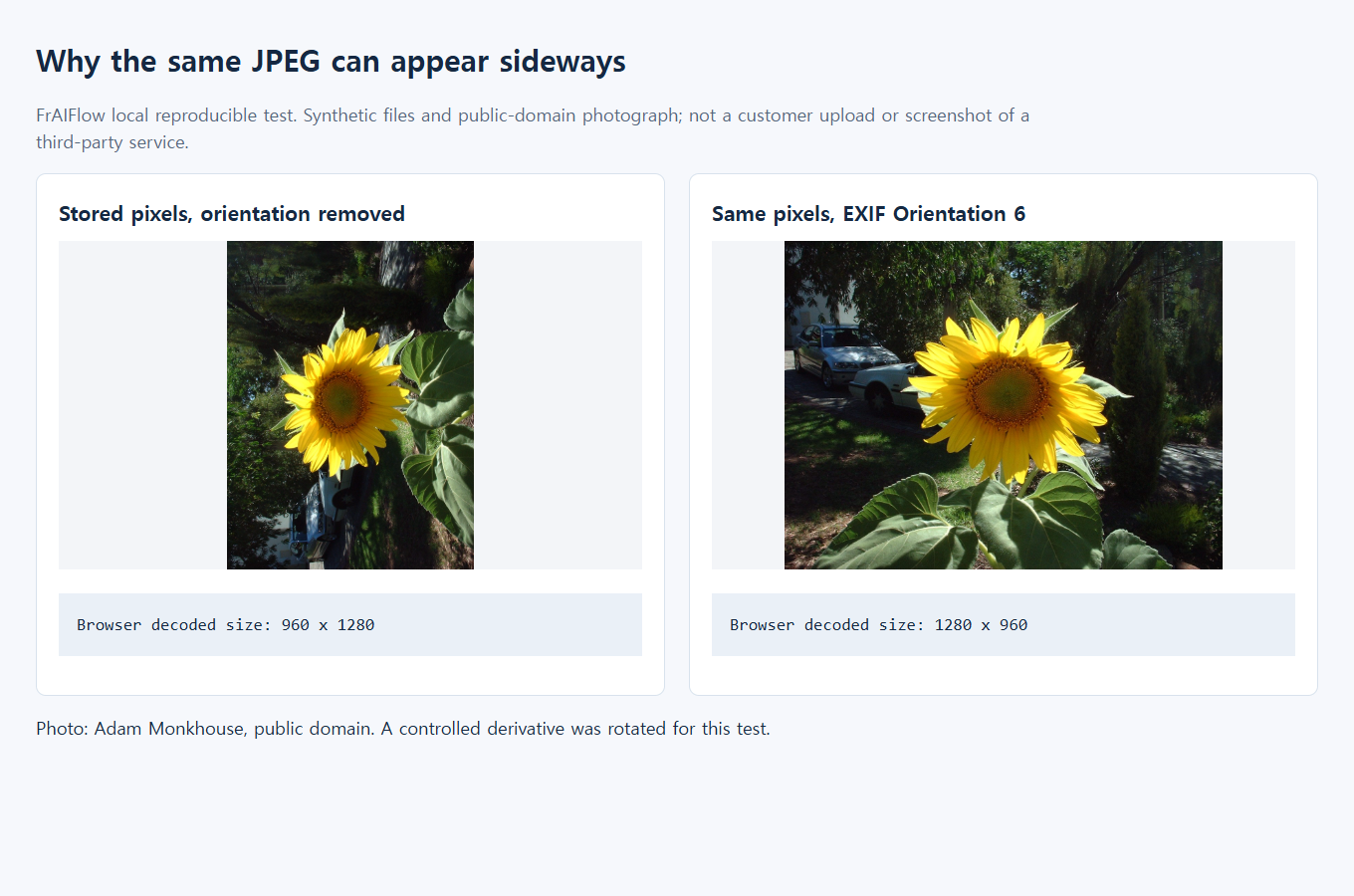
The raw layout is sideways. Decoded dimensions: 960 × 1280.
2. Same pixels, Orientation 6
The viewer applies the tag. Displayed dimensions: 1280 × 960.
These are CSS-framed regions of the original evidence, not new photos or a second test.
One photograph can carry two kinds of orientation
A JPEG contains a rectangular grid of pixels. It may also contain an EXIF Orientation tag telling software how to arrange that grid for display. The CIPA EXIF specification describes eight arrangements, including mirrored ones. This is why “rotate every portrait photo 90 degrees” is not a reliable repair.
Think of a printed picture with a small “this way up” note attached. One program reads the note and turns the picture. Another displays the picture as stored. Both programs have opened the same file, but the result looks different. A third program can turn the picture and accidentally leave the old note attached, so the next viewer turns it a second time.
A real Microsoft support discussion describes photos that looked correctly rotated locally but appeared sideways after upload. Some later replies say that saving a new copy helped. Those are user reports, not a diagnosis of your file. The accepted reply asks about image dimensions, and the thread does not prove that every case was an EXIF fault.
There are other possibilities: a site might have an old thumbnail, an editor might be showing an unsaved change, or an upload service might apply its own crop and rotation. Start by separating those possibilities rather than treating every sideways picture as the same bug.
Find the point where the picture changes
Use one file and a name you can recognize, such as photo-orientation-check.jpg. Do not upload an entire folder while troubleshooting. A single repeatable example is easier to compare, and it avoids sharing more photos than necessary.
- Check the original outside the photo library. Open the actual file in a second viewer. Make sure you did not open a duplicate, an edited library preview, or a thumbnail. If the two viewers disagree, record which one displays it sideways. That is useful evidence of an interpretation difference, though it does not yet identify the faulty component.
- Save a separate export from the editor. If the scene is wrong, rotate or flip the copy until recognizable text and objects face the intended direction. If it already looks right, do not add a compensating rotation merely because the website was wrong. Export a new file rather than overwriting the only original.
- Close and reopen the export. This catches the common mistake of examining an editor's working view rather than its saved output. Check the filename, folder, orientation, and pixel dimensions. Opening the same export in a second viewer provides a more useful check than reopening the original library item.
- Upload that exact export once. Use a new filename to distinguish the result from an earlier attachment. If the site offers both a thumbnail and the full attachment, inspect both. Do not assume the thumbnail is the delivered file.
If the export is wrong before uploading, fix the local export path first. If it is correct locally and the full downloaded attachment is wrong, the destination may have transformed it. If the attachment is right but only its thumbnail is wrong, repeatedly rotating the source can make the delivered file worse. Report the thumbnail discrepancy to the service instead.

What a useful export should accomplish
For this problem, the desired result is an image whose pixels are already arranged the way you want to see them, without a conflicting orientation instruction. This is often called normalizing or baking in orientation. Simply deleting EXIF metadata is not equivalent: if the pixels are sideways, deleting their instruction first leaves them sideways.
Work on a copy in an editor you already trust. The exact commands depend on the app and version. For example, Apple's Preview guide for Mac documents rotation and flipping. Those controls let you change a visible arrangement, but an operation's name alone does not prove what happened to the exported file. The close-and-reopen check still matters.
For an upload that accepts JPEG, choose a normal JPEG export and inspect it before sending. If your editor offers metadata options, do not carry a stale rotation value into newly arranged pixels. If you cannot tell how the app handles orientation, test one copy rather than processing your entire library. A successful small example gives you a practical export recipe for that destination.
PNG can be useful as a temporary inspection copy because saving decoded pixels to PNG avoids an additional lossy JPEG encode. It is not automatically the best upload format: a photograph saved as PNG may be much larger, and some forms reject it. If you later export the inspection copy as JPEG, verify that final JPEG too. The file you checked must be the file you attach.
If you are using Preview on a Mac
Work on a duplicate file so you can compare it with the original. In Preview, select the image and use the Rotate Left control only if the visible picture is actually facing the wrong way. Apple's rotation and flipping instructions describe these controls. Do not rotate an already upright view as a guess at what the upload site wants.
Save a separate export, close it and open the file from its saved folder. Check a recognizable feature such as lettering or the horizon, then upload that exact copy under a distinguishable filename. This verifies your export workflow for that picture. It does not establish that every version of Preview normalizes every possible EXIF arrangement, so retain the original if another viewer still disagrees.
A local route when you need to inspect the file precisely
If you already use Python and Pillow, the short recipe below makes a separate PNG copy of an RGB JPEG. It is deliberately narrow. It refuses other formats and color modes rather than silently converting a file whose color handling needs different treatment. There is no upload step.
from pathlib import Path
from PIL import Image, ImageOps

source_path = Path("photo.jpg")
output_path = Path("photo-upright.png")
if output_path.exists():
    raise FileExistsError("Choose a new output filename")

with Image.open(source_path) as source:
    if source.format != "JPEG" or source.mode != "RGB":
        raise ValueError("Use an RGB JPEG for this example")
    print("Before:", source.size, source.getexif().get(274))
    upright = ImageOps.exif_transpose(source)
    upright.save(output_path,
                 icc_profile=source.info.get("icc_profile"))

with Image.open(output_path) as result:
    print("After:", result.size, result.getexif().get(274))
Pillow's ImageOps documentation describes exif_transpose() as applying the EXIF orientation and removing the orientation information when a transformation is needed. This is different from blindly rotating every image clockwise. The operation uses the file's instruction, which may specify a reflection as well as a rotation.
The printed numbers help explain the change, but they are not a replacement for looking at the image. A width-and-height swap can be expected for a quarter-turn; a mirrored arrangement may keep the same dimensions. The absence of Orientation after export does not prove that the subject is upright. It only tells you that this particular instruction is absent.
This example preserves an available ICC color profile, but it is not a universal color-conversion or privacy-cleaning tool. Pillow documents format-specific saving options in its image file format reference. If the input is CMYK, stop and use a profile-aware conversion for screen viewing. Changing a color-mode label is not the same as converting the colors correctly.
We ran this recipe on the controlled RGB JPEG used here: the source reported 960 × 1280 pixels and Orientation 6; the reopened PNG reported 1280 × 960 and no Orientation tag. Its decoded pixels exactly matched the transposed input. This checks this fixture and recipe, not every camera or website.
Read the before-and-after evidence carefully
The local example uses a controlled rotated derivative of Adam Monkhouse's public-domain sunflower photograph, not a customer's private photo. Its purpose is to make the direction unambiguous. The same distinction applies to your own picture: choose a feature with a clear top, such as a horizon or readable lettering. A nearly symmetrical face crop or a close-up texture can hide the error.

There are three different things to compare: the source file as an orientation-aware viewer displays it, its underlying stored arrangement, and the normalized export. The first and third should agree visually when the source tag accurately describes the intended view. The raw stored arrangement may differ. That difference is not itself damage; it explains why software that discards the instruction too early can produce an unexpected result.
Look at the same feature in both reopened files: it should face the same direction, and the full frame should still be present. These local checks demonstrate the file-handling mechanism, not the behavior of an untested social network, phone, or upload form.
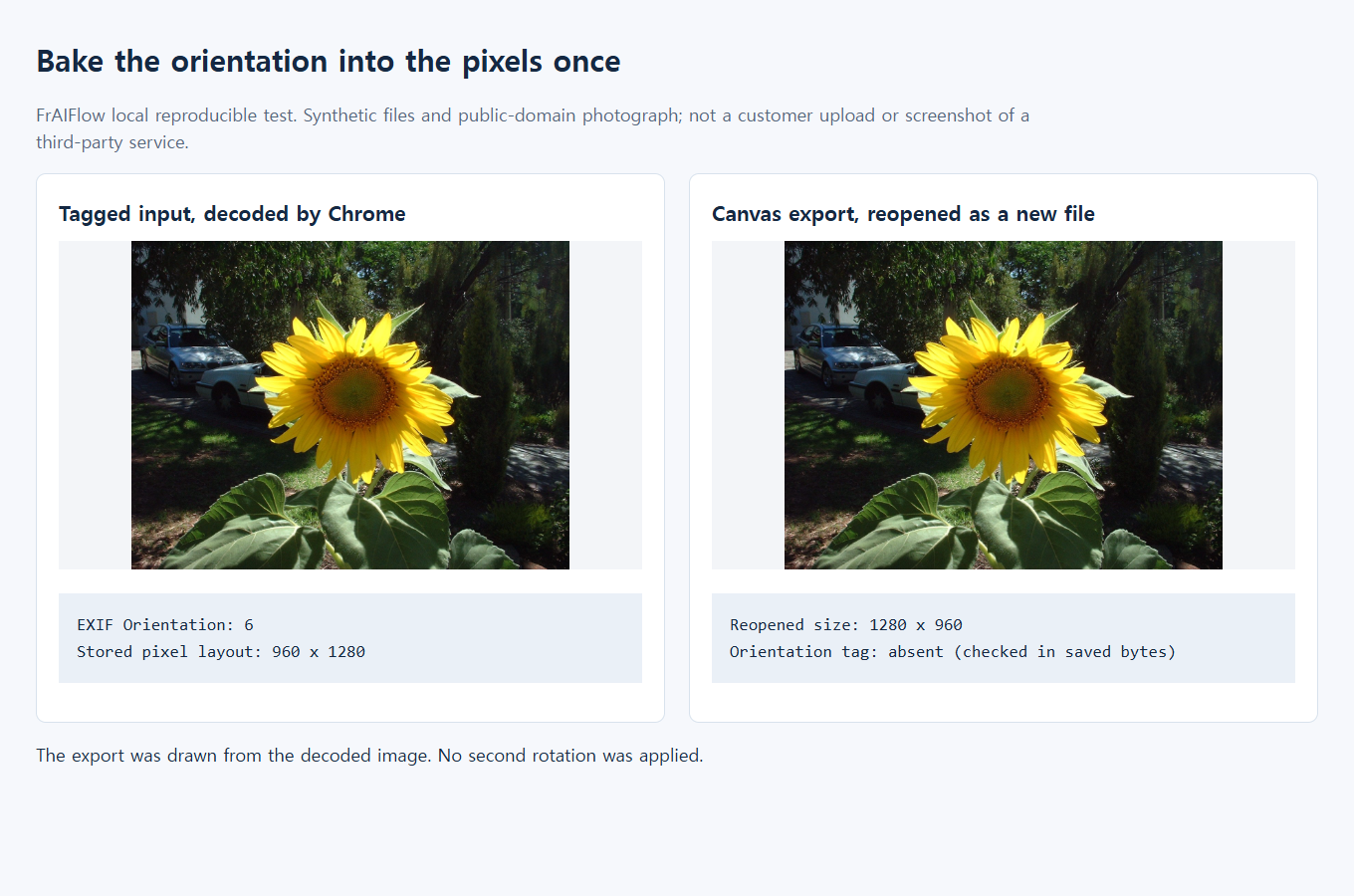
For the earlier controlled orientation example, the original measured comparison diagram remains available as supplementary evidence. It is not a phone screenshot or a record of a live upload.
If the repaired copy still turns sideways
The photo has no orientation tag. A normalization function cannot infer which way a person or building ought to face. Rotate or flip a copy manually, save it, and verify the result. Do not invent an EXIF value as a substitute for checking the pixels.
The website rotates it twice. A file may already have upright pixels but still carry a stale tag. Avoid compensating for the website by adding another arbitrary rotation to your master copy. Test a clean export with consistent pixels and metadata, and keep that export separate from the original.
The browser looks right but a downstream service does not. Browsers can interpret EXIF orientation themselves. MDN documents the image-orientation property, whose initial value uses image orientation metadata. A correct browser display therefore does not establish that the file has been normalized. A CSS rotation changes a page's presentation, not the saved attachment used by another service.
The image is upright but cropped badly. That is a different problem. Compare the full frame with the destination's shape and follow the profile-photo cropping guide. Rotating a picture cannot recover an edge removed by a square or circular crop.
The export is too large or looks softer. Check the site's actual file format, size, and dimension requirements. Make one final upload-sized export from your best source instead of repeatedly saving the same JPEG. The JPEG resaving guide explains that separate quality issue.
The file contains private information. Correct orientation does not mean safe metadata. Review location and other personal metadata separately before sharing. Do not upload a private photo to an unfamiliar “fixer” just to learn its direction. And do not use this single-image recipe for a moving image: animation has its own frame-preservation requirements.
When you contact a site's support team, describe the smallest comparison you can reproduce: which exact file is upright locally, whether the thumbnail or full attachment is wrong, and whether a newly exported copy behaves differently. Share a non-sensitive sample if one reproduces the issue. That gives the service something actionable without turning a solvable display problem into a trail of overwritten originals.