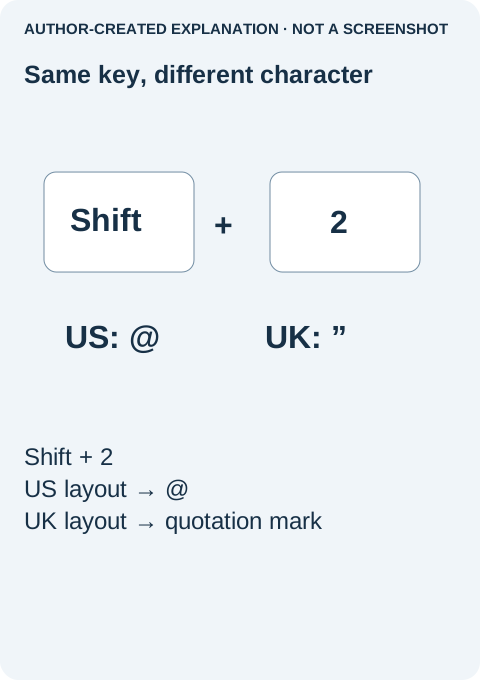
Why Shift+2 types the wrong symbol in Windows
If you expect a US keyboard layout but Shift+2 produces a quotation mark instead of @, check the active layout. On a UK layout, the quotation mark is the expected result. Before replacing the keyboard, check whether Windows is using the layout printed on your keys. Symbol mismatches can appear while ordinary letters work.
Change the keyboard layout without changing all of Windows
You usually do not need to change the display language, reinstall drivers or buy another keyboard. Start with the input layout. An English interface can legitimately use a US, UK or another physical keyboard.
- Open Notepad and type a harmless test. Enter
2, then hold Shift and press the same key. Write down the result. Repeat in the app where you noticed the problem. Do not use real passwords as test text. - Open the taskbar input selector. Read the full keyboard name, not just an abbreviation such as ENG. Choose the layout that matches the symbols printed on your keyboard. Windows+Space also switches installed layouts.
- If that layout is missing, add it. On Windows 11, go to Settings → Time & language → Language & region. Open the language's three-dot menu and Language options. Under Keyboards, use Add a keyboard and choose the required layout. The layout can be available under an existing language; changing the Windows display language is not the same task.
- Return to Notepad and test again. Check Shift+2 and one other affected symbol. Then return to the original app and repeat. A fix in Notepad but not that app points toward an app-specific input or shortcut issue.
Do not remove layouts you use for another language just to make the list shorter. If the wrong one keeps returning, note when it happens: after switching apps, opening a remote desktop, or reconnecting a keyboard. Those details are more useful than repeating the same shortcut indefinitely.
If only one physical key is unreliable, or the output changes when you press the key harder, a layout change may not address the problem. Conversely, several symbols consistently appearing in different positions is a stronger reason to inspect layout before hardware. A browser keyboard tester can show what the browser received, but it cannot prove that Windows selected the correct layout or that the physical keyboard is healthy.
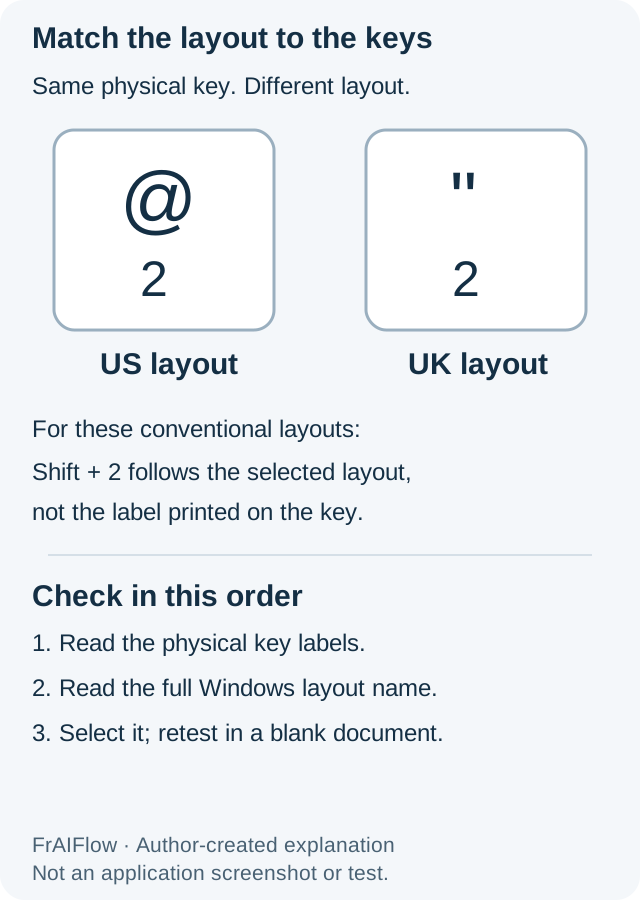
For conventional layouts, US Shift+2 produces @, while UK Shift+2 produces a quotation mark. A public report of incorrect Shift-number symbols prompted replies about the Windows input selector. That is a useful symptom to recognize, not proof of every keyboard fault.
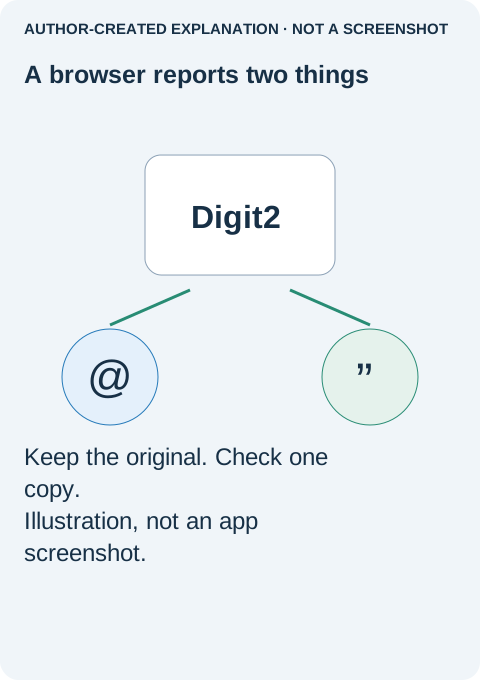
Why a tester can show Digit2 and @
Browser events distinguish the produced character, key, from the physical position, code. MDN uses Shift+2 to explain the US/UK difference. A tester may therefore report Digit2 with either @ or a quotation mark. Its fixed US drawing does not prove your Windows layout. Games may bind to positions rather than characters.
The retained Chromium test constructed two events with code Digit2 and shiftKey true, supplying @ and a quotation mark as key. Both returned isTrusted false. It verified those synthetic fields, not a physical keypress or Windows layout change. If the right layout still fails, record the keycap, modifier, layout and output. Dead-key composition, remapping tools and remote desktops need separate checks. Use device diagnostics for persistent hardware-like faults rather than switching layouts repeatedly.