Why a split PDF is still almost as large as the original
You extract a single page from a PDF, attach it to an email, and discover that it is almost as large as the whole document. Repeating the split does not help. The page count is correct, so why are nearly all the bytes still there?
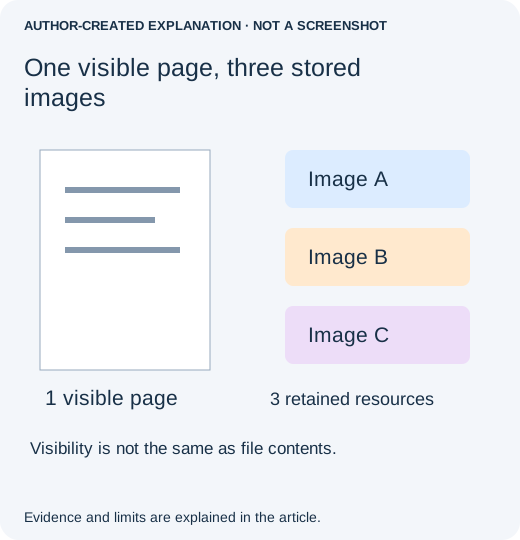
A PDF is not simply a stack of independent page images. Pages can refer to shared fonts, pictures and other resources. An extraction tool may carry more of those resources into the new file than the selected page needs. Alternatively, that one page may contain a very large scan. These two causes need different fixes, so start by finding out which one you have.
Check the saved file, not just the page thumbnails
- Keep the original. Save the extracted page under a distinct name such as
page-4-extracted.pdf. - Close and reopen the extracted copy. Confirm that it really contains only the intended page, including any required annotations.
- Compare the file sizes in your operating system's file information window. Use the actual size, not “size on disk,” which also reflects storage allocation.
- If possible, extract a mostly text page separately. When a simple text page is nearly as large as a page full of photographs, retained shared resources are worth investigating. This comparison is a clue, not proof.
Do not use cropping as a substitute for extraction or compression. Cropping changes what is visible; content outside the visible rectangle may still be stored. Likewise, deleting a thumbnail does not necessarily produce the smallest possible file when the document is saved.
Find out what occupies the space in Acrobat Pro
If you already have Acrobat Pro, its space audit is more informative than repeatedly choosing a stronger compression preset. On Windows, open Menu → Save as Other → Optimized PDF; on macOS, use File → Save as Other → Optimized PDF. In that dialog, choose Audit space usage. Adobe's space-audit guide shows the report.
Look at the largest category first. A file dominated by images needs a different treatment from one dominated by fonts. Write down the finding before changing anything. If your edition does not offer optimization, do not buy an upgrade just to diagnose one attachment: ask the sender for a smaller export from the original authoring document.
Choose the smallest change that addresses the cause
- The selected page contains a large scan or photograph. Try image compression on a duplicate. Check small type, signatures, fine lines and diagrams at a readable zoom. A reduction that makes an invoice number ambiguous is not a useful reduction.
- Unneeded resources appear to have followed the page. Try exporting the selected page from the original Word, design or scanning project, or compare a different trusted extraction tool. If using Acrobat's optimizer, review its resource-cleanup options rather than selecting every removal option indiscriminately.
- Fonts or attached files dominate. Preserve anything the recipient needs. Removing embedded fonts can change appearance on another computer; deleting an attachment may remove part of the deliverable. Ask for a simpler source export when you cannot safely tell what is dispensable.
Adobe's optimizer settings reference explains the available categories. Keep forms, comments and attachments unless you have deliberately agreed to remove them. Avoid using Print to PDF as a universal cleaner: the replacement may lose links, searchable text, forms, accessibility information or signature evidence.
A real example: one music-score page kept other images
In pdf-lib issue 1662, a developer splitting music scores found images that the exported page did not use. Their cleanup depended on a predictable document structure. It is not a safe recipe for deleting objects from arbitrary PDFs.
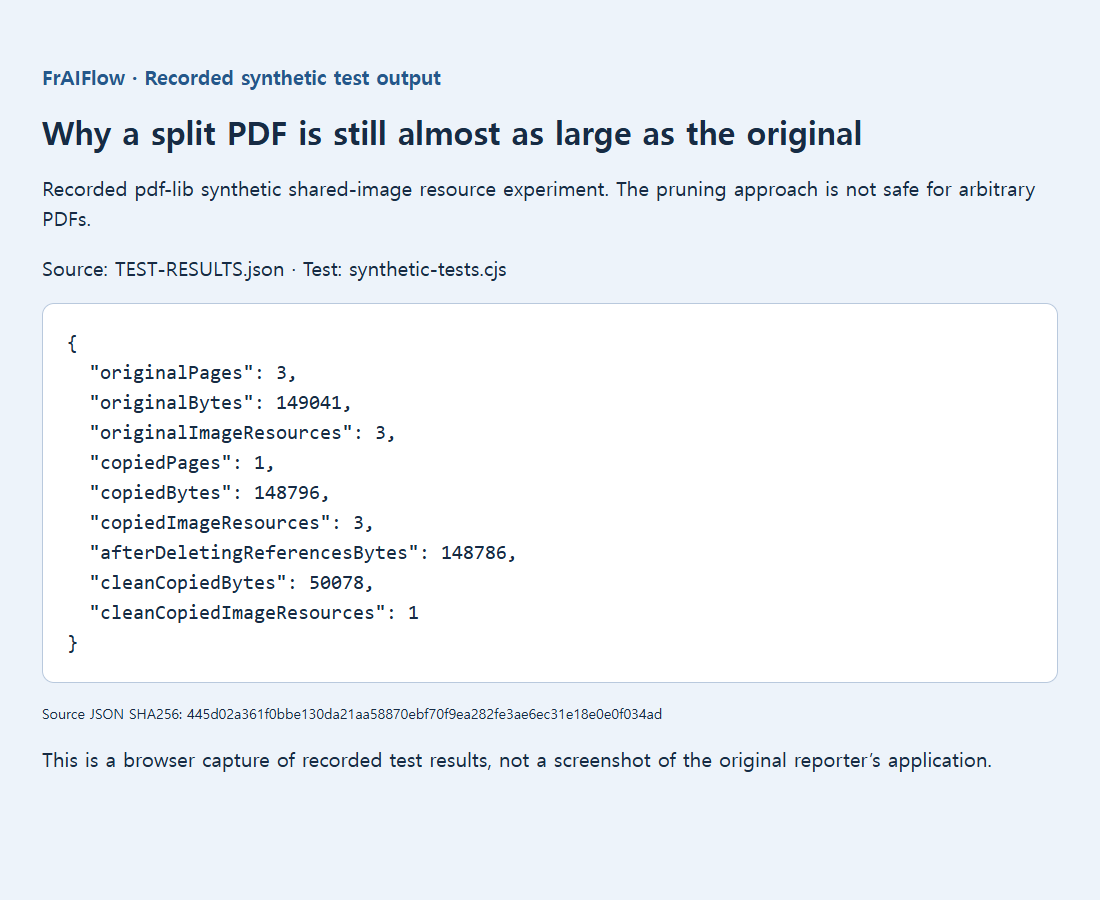
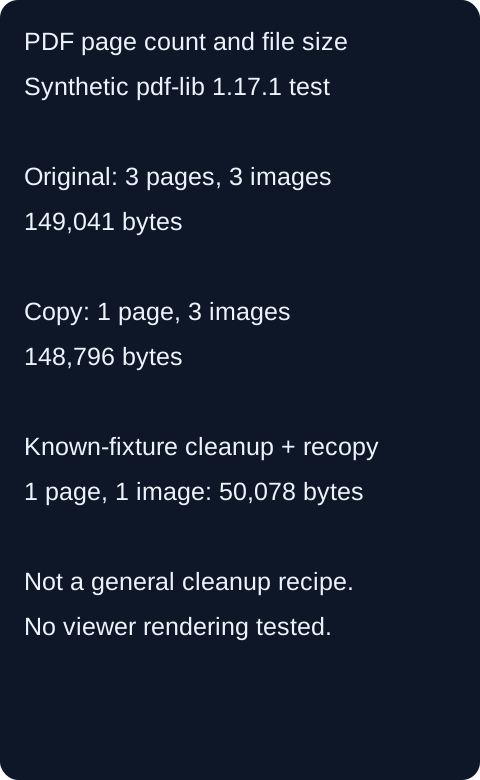
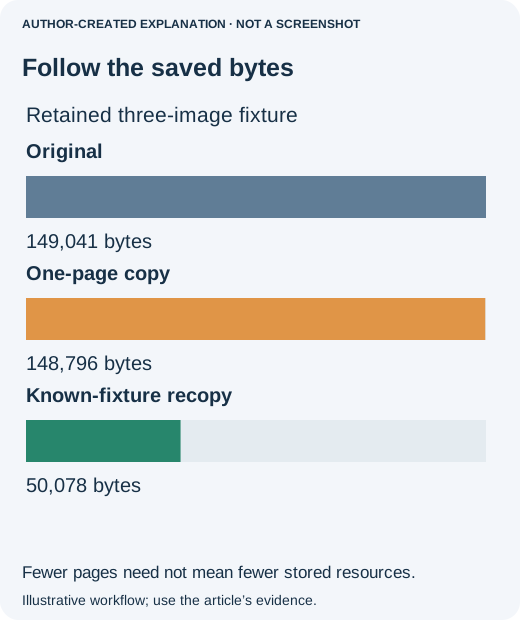
Our retained synthetic example illustrates the same resource problem: a three-page file was 149,041 bytes; copying one page produced 148,796 bytes and retained three image resources. Removing two references alone barely changed its size. Copying the cleaned fixture into a fresh document produced 50,078 bytes with one image. Those measurements describe that fixture, not a promised compression ratio for your document.
Before sending the smaller version
Reopen the saved output and compare it with the original page. Read the smallest important label, search a known phrase, follow a required link and try any form field that must remain editable. Check page order when extracting more than one page. If it is digitally signed, do not assume that an unchanged-looking page preserves signature validity.
Keep the smallest version that still does the job, not simply the smallest file. If it remains above the recipient's limit, ask whether they accept a secure sharing link or a different authorized format. Repeated destructive compression is rarely a good substitute for clarifying what the recipient actually needs.