Why filled PDF text is blank until you click a field
You receive a completed form, open it, and see what looks like an empty box. Click inside the box and the answer appears. Click somewhere else and it disappears again. Before asking the sender to fill out the whole form a second time, check whether the value is present but not being drawn correctly.
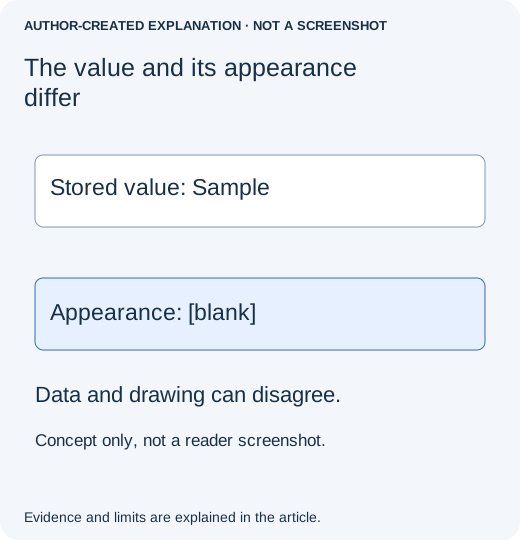
Interactive PDFs keep a field's value separately from the appearance used to display it. A viewer may draw the active field one way and its saved appearance another way. Missing appearance information, an unsuitable field setting or a damaged form-copy workflow can therefore produce similar symptoms. There is no single setting that repairs every file.
First, establish what is actually missing
- Save the received attachment without editing it. Make a separate working copy.
- Open that same saved copy in desktop Acrobat Reader, not just the email or browser preview. Click an affected field, then click outside it.
- Check several fields, including one with a long answer. Note whether the text appears only with focus, remains missing everywhere, or disappears only after saving.
- Open print preview without printing. Check whether the values are present there too. A visible answer while typing is not enough to approve the final document.
If the values appear normally in one trusted reader but not another, tell the sender which application shows the problem. If the form is empty in every reader and clicking reveals nothing, this may be an unsaved or incorrect attachment rather than a display fault. Ask the sender to reopen the exact file they sent before requesting another round of typing.
If you are the person completing the form
For a form that is not signed or locked, try the sender's blank original in a compatible desktop reader. Fill one disposable test field, save under a new name, close the file and reopen it. Only continue with all the answers when that small test survives. If the sender requires a specific application or submission process, follow it rather than switching viewers halfway through.
Do not overwrite the received filled file to experiment. Do not paste a second text box over an invisible answer: this can make the page look correct while leaving conflicting values underneath. When a deadline is close, ask the recipient whether they can accept a verified reading copy as well as the editable original.
If you own the form, inspect one affected field
In an authorized editable copy in Acrobat, choose All tools → Prepare a form, right-click the affected field and choose Properties. Adobe documents that entry point in Change form field settings. Check the field's visibility, text appearance and size. A white text colour, an unsuitable font or text that does not fit needs a different correction from an absent field value.
Compare the settings with a similar working field before making a change. Then save a new copy and repeat the no-click and print-preview checks. Do not change every field's properties simply because one box behaves oddly. Field scripts, calculated values and read-only settings may be intentional.
If the problem started after merging or extracting pages, return to the unmerged form. A page-copy operation may preserve the visible field widget while losing its connection to the document's form structure. The responsible application needs a form-aware repair; changing the font cannot rebuild a missing form tree.
What the reported case does, and does not, establish
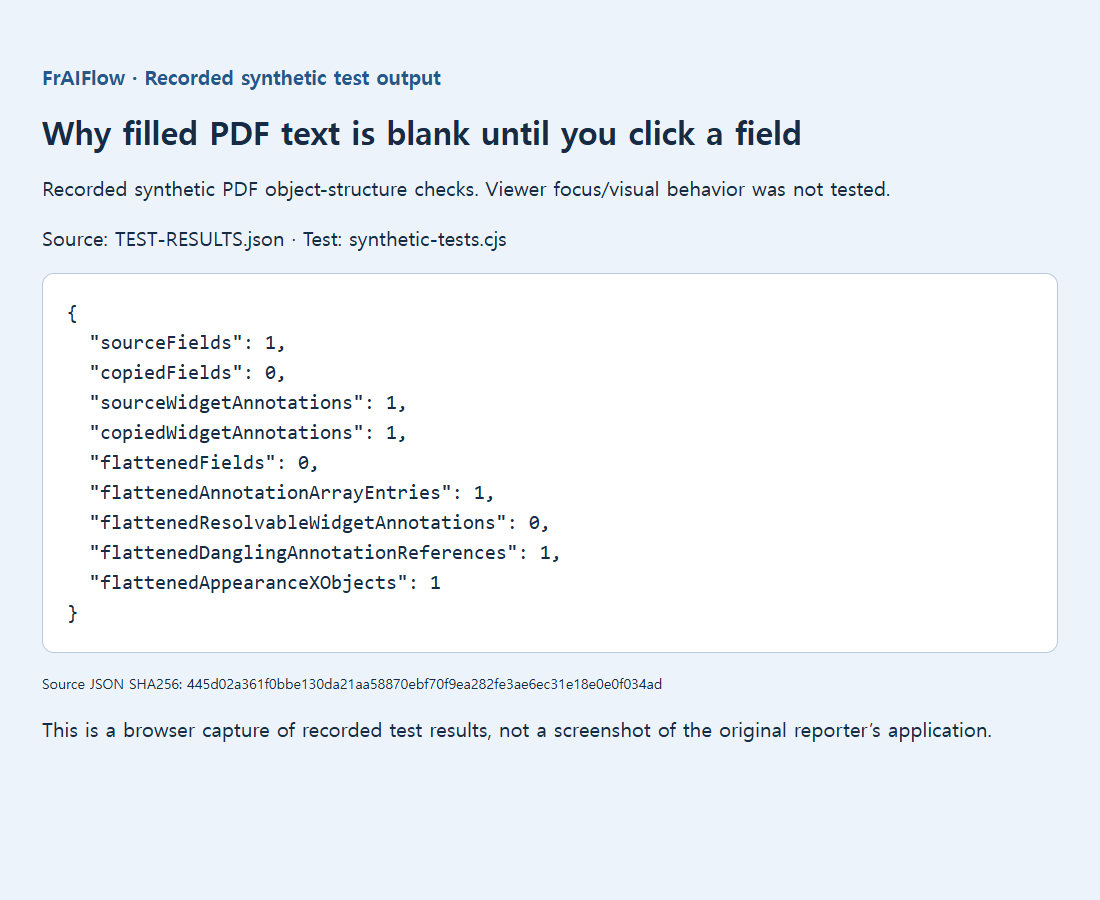
In pdf-lib issue 1584, a reporter described values visible only with focus and later confirmed a contributor's form-copy workaround. A separate issue, linked below, concerns fields disappearing from the document-level list after page copying. These are specific software cases, not proof that every blank form was completed in the wrong viewer.
Our retained one-field fixture demonstrated an incomplete copied structure: its widget remained, but the new document listed zero fields. It did not reproduce the exact focus-dependent display in a reader. A separate experimental flatten-and-copy output also retained an unresolved annotation reference, so it is not a recommended repair file.
Send a form the recipient can actually use
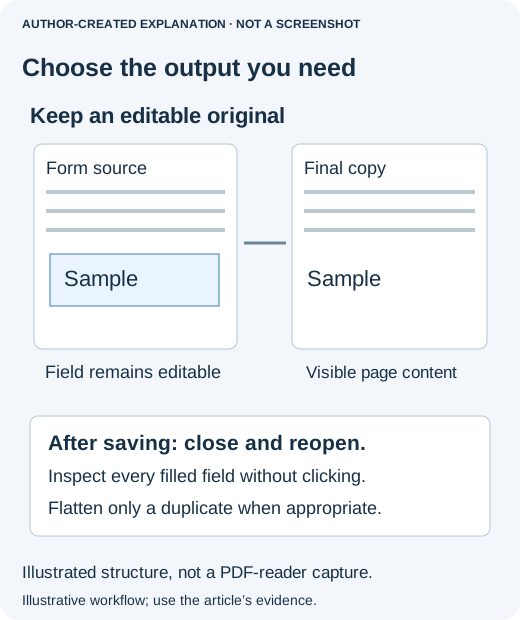
For an editable form, reopen the final file and test a disposable copy: change one value, save and confirm that the change remains. For a read-only deliverable, flattening may be appropriate only after every answer is visibly correct and the recipient agrees to lose interactivity. Never flatten a signed document as a casual repair.
Before sending, inspect every page without clicking through the fields to make them appear. Confirm dates, amounts and long answers against the intended entries. If it still fails, give the form owner a precise report: application, affected field, whether focus reveals the answer, whether print preview shows it, and whether the failure began after merging. That is far more useful than “the PDF is blank.”