Your download is HTML instead of the file you expected
You download a PDF, but your reader cannot open it. Or a file named photos.zip turns out not to be an archive at all. Before trying a repair tool, check what was actually saved. You may have downloaded a web page that describes, protects, or replaces the file, rather than the file itself.
The most useful distinction is between a damaged document and the wrong response. Corruption affects the document data; an HTML sign-in page is a different response altogether. Renaming that page, changing its extension, or converting it cannot recover document bytes that never arrived.
1. Identify the response you actually received
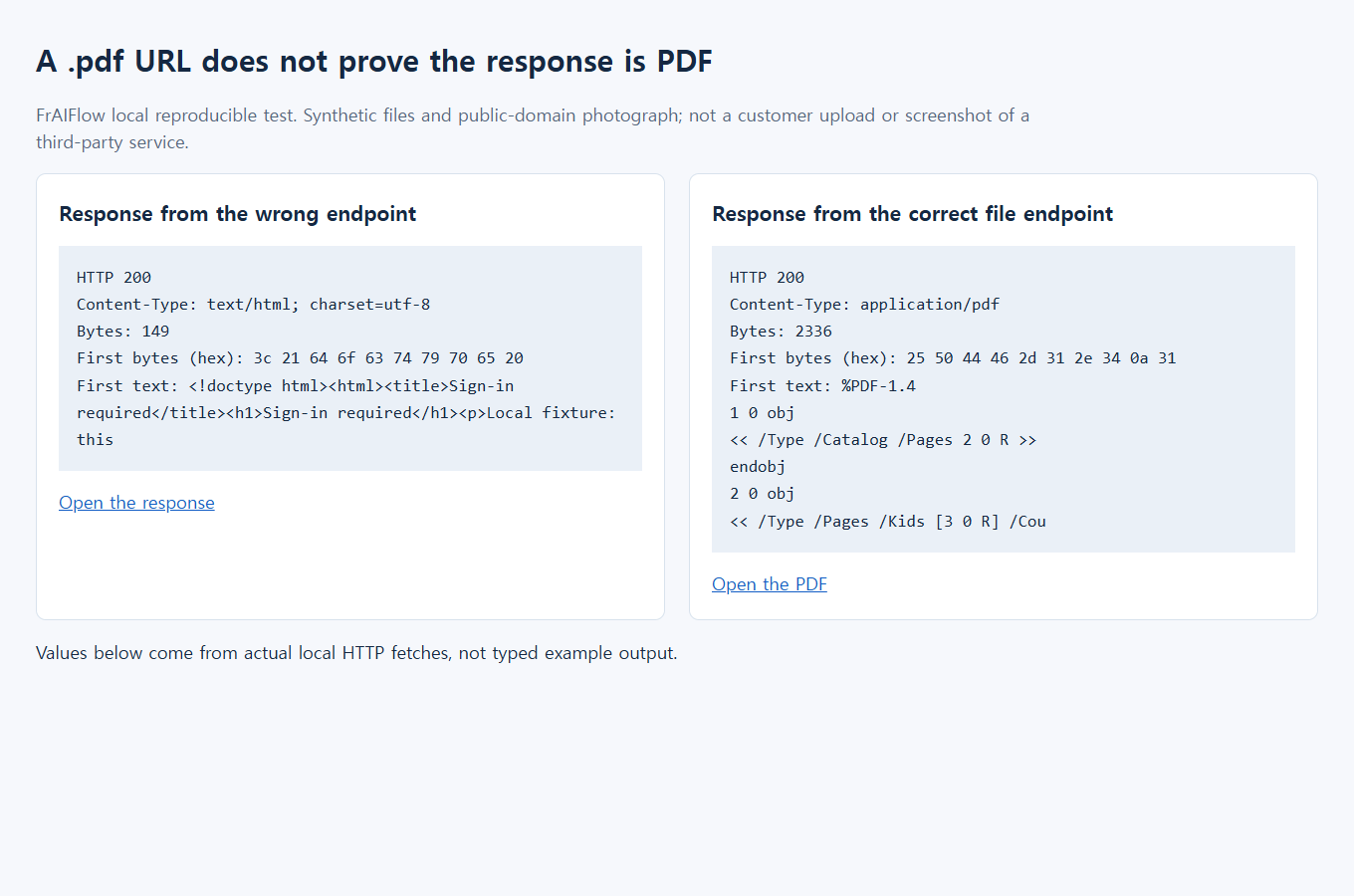
Wrong route: HTTP 200 · 149 bytes · text/html; charset=utf-8
Correct route: HTTP 200 · 2,336 bytes · application/pdf
These are the retained synthetic local test measurements, not a live third-party service.
First, go back to the trusted sharing page
If you only need one file, start with the normal website rather than a command-line downloader or browser extension. Open the original link from the sender. Check the actual website address before entering a password. Do not follow a sign-in form embedded in an unexpected downloaded HTML file.
- Check that the intended item is there. Look for the filename, preview, and any access message. A missing-file notice or expired-link page is not a corrupted download. Ask the sender for a working link.
- Use the website's Download control. The browser's Save page command saves the page you are viewing; it is not a substitute for downloading its attachment. Likewise, saving a thumbnail is not necessarily downloading the original image.
- Wait until the download finishes. Open the completed item from the browser's downloads list. If several similarly named copies exist, use the newest completed one rather than the old failure.
- Check it in the appropriate application. For a PDF, confirm that the expected pages render. For an archive, check that its contents can be listed and that an expected document can be extracted and opened.
Dropbox distinguishes a shared link from membership of a shared folder. Its shared-link help page explains that a recipient can download from a shared link without joining a folder or necessarily creating an account. On that page, the download icon is described at the upper right. A particular link may still have restrictions. If downloading is disabled, ask the owner for an authorized copy; do not treat a different URL as permission to bypass it. Dropbox documents these controls under shared-link permissions.
What an HTML download can tell you
An unusually small file is a useful clue, not a diagnosis. A legitimate text document can be tiny, and a large error page can be surprisingly substantial. The filename is equally inconclusive: a downloader can save HTML under a name ending in .pdf, .zip, or .jpg.
For a small suspect file, make a copy and use a plain-text editor's Open command to inspect it without saving changes. Do not run it or let it direct you to another login page. If you see <!doctype html>, <html>, and page text such as “Sign in” or “File not found,” you have evidence that the saved content is a webpage. The page text may suggest what happened, but it does not establish why the service returned it.
Unreadable characters in a text editor do not prove corruption. Most PDF and archive data is not meant to be read as plain text. A recognizable prefix also does not validate a complete document or establish that it is safe. Use a proper reader for the expected format, and keep your normal security checks in place.
2. Read the first bytes, not the extension
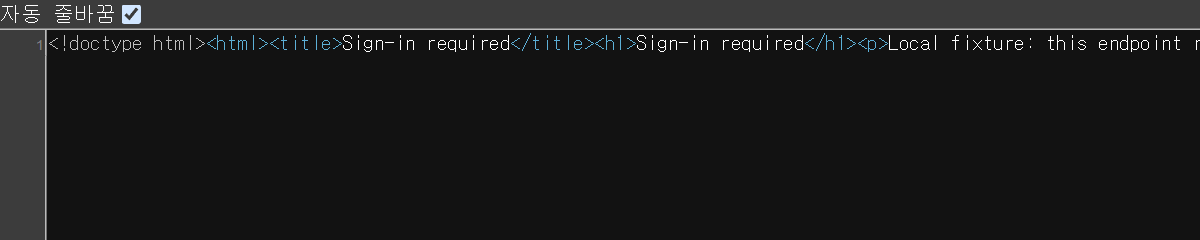
Wrong: <!doctype html> and Sign-in required
Expected sample: %PDF-1.4
The original source-view capture below can be scrolled horizontally on a phone without shrinking its lettering.
Read the same clues without zooming
This text transcribes the retained local test evidence; it is not a second screenshot or a live service response.
- Identify the wrong response. The local request returned HTTP 200,
text/html; charset=utf-8, and 149 bytes. The saved body starts with<!doctype html>and contains<title>Sign-in required</title>. - Compare the correct route. The separate local file route returned HTTP 200,
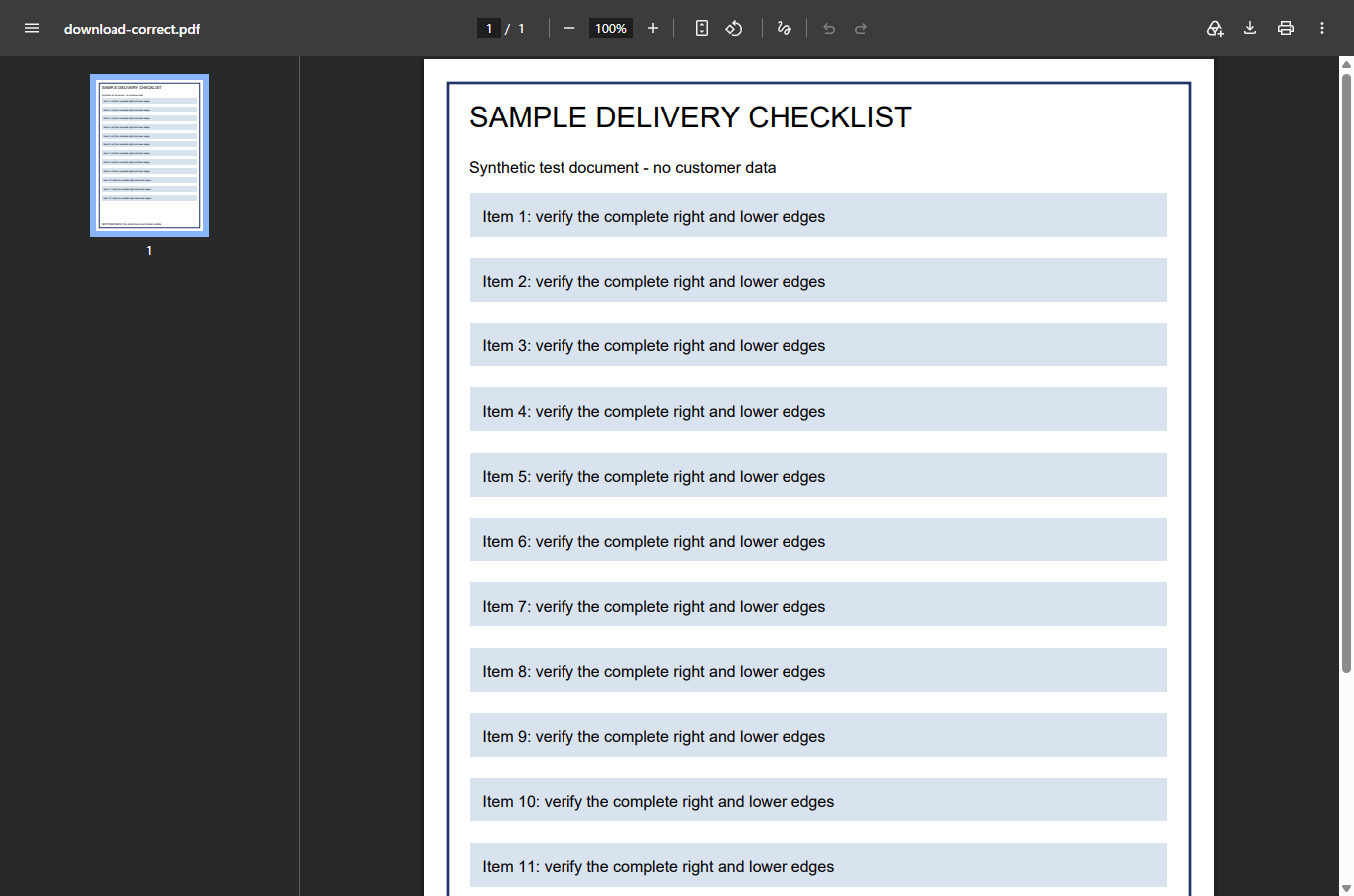
application/pdf, and 2,336 bytes. Its first bytes read%PDF-1.4. - Verify what opens. The separate PDF-reader screenshot below shows the correct sample rendered. Neither a PDF prefix nor HTTP 200 alone proves that an arbitrary downloaded document is complete or safe.
Open the full-size screenshot to inspect the original pixels. The readable transcript above avoids making a phone reader decipher the small source-view text.
There are several plausible explanations, and they call for different next steps:
- You saved the preview page. Return to the sharing page and use its own download command.
- The request reached a sign-in or access page. Complete legitimate sign-in only on the verified service, if you are authorized, then try its normal download path. A link that works in your signed-in browser may not work in an unrelated downloader.
- The link is no longer valid. Ask the sender to check whether the item still exists and whether the link is meant for you.
- An automated tool handled the response incorrectly. It may have stopped at a redirect or saved a page without checking the content. First establish whether one ordinary browser download works.
- The service had a problem. Do not assume every failure is a local mistake. Record the time and visible error, then check the provider's own support information.
A controlled example: the filename is not the document
The screenshots use a controlled local example: one route returns an HTML access page, and a separate route serves the sample PDF. They are not captures of Dropbox or a customer account. The contrast shows why the saved content matters more than its filename.
Compare three things in the screenshots: the saved filename, the response content, and what the document reader can display. A name that looks right does not settle the question. The useful endpoint is a readable sample document obtained through the correct route, not simply a browser message that something downloaded.
Try the same reasoning on your own file without sharing it anywhere. Keep the failed copy separate from the successful one. Reopen the exact file that just finished downloading. If the sender can provide an expected page count, filename, or file size, use those as additional checks. A matching size alone is not proof of identical contents.
For an archive, successful extraction is a better check than its icon. For a PDF, inspect more than its first-page thumbnail: open the last expected page and check that the relevant material is present. If the file opens correctly but a different feature fails, stop treating it as an HTML-download problem. That new symptom needs its own diagnosis.
3. Reopen and inspect the actual file
The retained reader capture shows the correct sample PDF rendered. For your own document, also inspect the last expected page and important content. HTTP 200 and a PDF prefix alone are not sufficient.
When a downloader says success but saves a page
If you maintain a script or help someone troubleshoot one, examine the final response rather than relying only on a successful request status. An HTTP success response can be a perfectly valid HTML page, just not the file you wanted. Log the requested operation, final status, returned media type, and the validation outcome without storing private link tokens or response bodies.
The Content-Type response header describes the returned media type. Seeing text/html when you expected a PDF is a reason to stop and inspect the request path. Headers are not a complete file validator: a server can label content incorrectly. Combine them with format-aware validation of the saved file.
Do not print authentication headers, cookies, private sharing links, or personal document contents into a troubleshooting ticket. A useful diagnostic can say “expected PDF, received HTML, normal browser download succeeds” without exposing the underlying file. If the normal browser also fails, include the visible error wording and the time, then ask the sender or service owner to investigate.
For a batch job, validate one authorized download before running the full list. Stop on a mismatch instead of saving hundreds of identical error pages. Keep failed outputs apart from approved files so the next process does not import them merely because their extensions look correct. Avoid repeated automated requests to a failing endpoint; retries do not resolve missing access or a revoked link.
If you maintain a Dropbox shared link
Dropbox's download-link documentation supports dl=1 for requesting a download rather than a preview. It also warns that existing query parameters need proper handling and that redirects may occur. Preserve the original authorized link instead of rebuilding it from the filename.
This illustrative code changes the download parameter while keeping the other query parameters. The tokens are placeholders; this example edits a URL without downloading anything:
const link = new URL(
  "https://www.dropbox.com/scl/fi/EXAMPLE/example.zip" +
  "?rlkey=EXAMPLEKEY&dl=0"
);
link.searchParams.set("dl", "1");
console.log(link.searchParams.get("rlkey")); // EXAMPLEKEY
console.log(link.searchParams.get("dl"));    // 1
Do not append a second question mark or remove an access-related parameter while tidying the address. Equally, do not assume that changing a parameter grants access. An expired, deleted, or restricted link still needs the owner to resolve it. Avoid third-party “direct link” converters for private URLs.
A historical Dropbox community discussion records automated downloads returning HTML. A staff reply reported a service-side fix, and a participant confirmed that downloads worked again; later replies described narrower problems. That is evidence that this symptom can have more than one cause, not evidence of a current outage or a universal fix. The earlier article also linked a public user report; treat an individual report as a symptom account, not an authoritative diagnosis.
Know when to stop repairing the wrong file
If a trusted site's normal Download control still saves HTML, send the owner the expected filename and visible message. Ask them to verify access and the original file. Do not upload a private document or access page to an unknown repair service. The missing document is still at the source; repair software cannot reconstruct it from a login page.
If you have obtained a valid archive but Windows cannot extract a long nested path, see the ZIP path-length guide. If the file is sound but its name is rejected while syncing, see the OneDrive filename guide. Those are later stages of the workflow, not reasons to keep changing a downloaded HTML file.
The practical finish line is simple: the intended file is saved, the correct application can read it, and its expected contents are there. Preserve the original until you have reached that point. A new extension, a completed progress bar, or a successful HTTP status is only one small part of that check.